One Mailcow instance serves several domains, each with its own mailboxes, aliases and DKIM key. You add each domain once as admin and give it limits along the way: how many mailboxes and aliases it may have and how much storage. Mailcow creates the DKIM key in the same step. After that, all that’s missing is DNS.
Only the admin can add and delete domains. A domain admin sees their domains in the Domains tab, but has neither Add domain nor Remove there. How to log in as admin is covered in Mailcow login: where users, domain admins and admins sign in.
Adding a domain
1. At the top, E-Mail → Configuration, Domains tab, button Add domain.
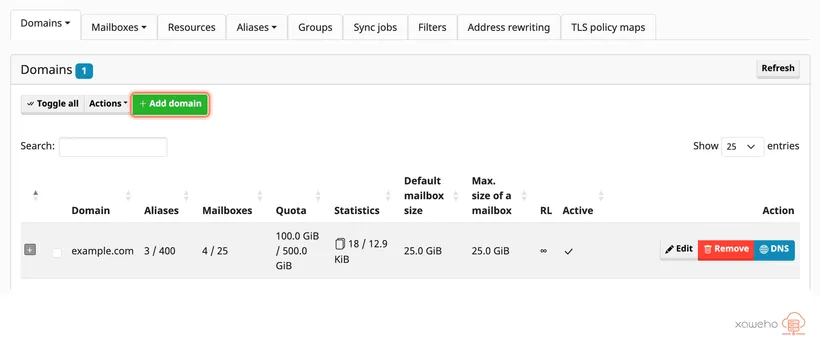
2. The top of the “Add domain” dialog covers name and housekeeping:
- Domain: the part after the
@in your addresses, for exampleexample.net. - Description: free text, such as the company or client name. Leave it empty and Mailcow fills in the domain name.
- Template: Default fills every field with Mailcow’s defaults. Your own templates are covered below.
- Tags: labels for sorting, added with +. Type a tag into the Search: field above the domain table and only the domains with that tag remain. Handy when you manage domains for several clients or brands.
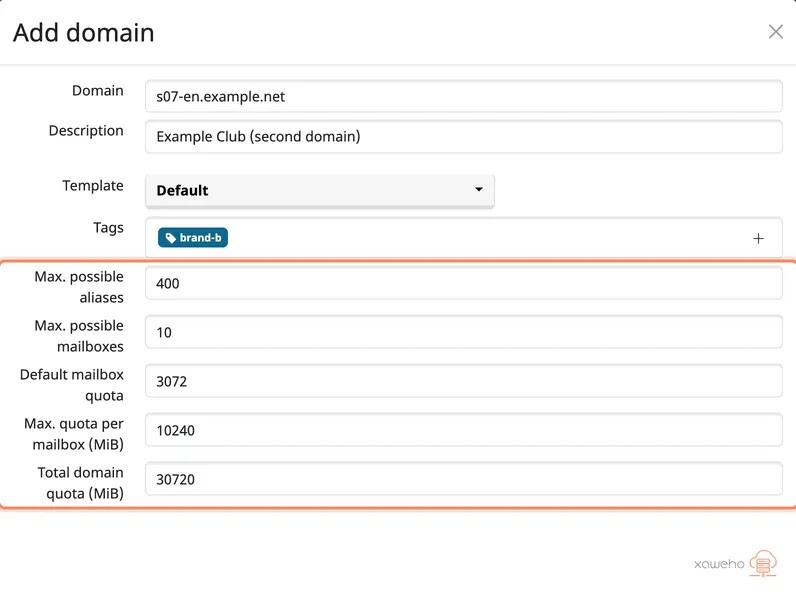
3. Below that come the limits. All storage values are in MiB; 1024 MiB is 1 GiB. That includes Default mailbox quota, even though its label shows no unit.
| Field | What it limits | Mailcow default |
|---|---|---|
| Max. possible aliases | number of aliases. Mailboxes don’t count. | 400 |
| Max. possible mailboxes | number of mailboxes | 10 |
| Default mailbox quota | storage the domain plans per mailbox | 3072 |
| Max. quota per mailbox (MiB) | ceiling for a single mailbox | 10240 |
| Total domain quota (MiB) | sum of the quotas of all mailboxes in the domain | 10240 |
Mailcow checks two rules when you save: the default quota can’t exceed the per-mailbox ceiling (“Default quota exceeds max quota limit”), and the per-mailbox ceiling can’t exceed the domain quota (“Max. quota exceeds domain quota limit”). Neither mailbox value accepts 0. In Max. possible mailboxes, 0 doesn’t mean unlimited, it means: not a single mailbox.
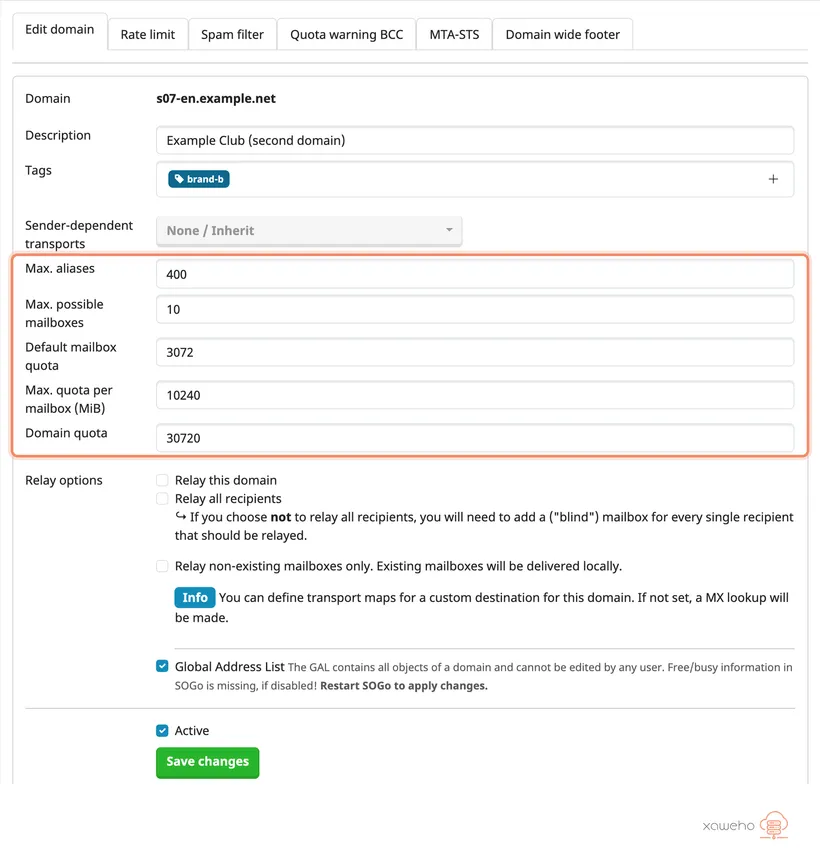
A classic trap: with the defaults, only three mailboxes with the default quota fit into the domain. 3 × 3072 MiB is 9216 MiB, 4 × 3072 MiB is already 12288 MiB. Mailcow refuses a fourth mailbox with 3072 MiB (“Not enough space left (space left: 1024 MiB)”), even though Max. possible mailboxes says 10. So do the math first: mailboxes times default quota. Ten mailboxes at 3072 MiB each need 30720 MiB, as in the screenshot.
4. In the lower part of the dialog:
- Global Address List: on by default. SOGo then shows an address book named “GAL” plus the domain, containing all objects of the domain, which no user can edit. According to Mailcow, SOGo shows free/busy information only with the Global Address List switched on. Changing it later only takes effect after a SOGo restart.
- Active: on by default. What switching it off does is covered below.
- Rate limit: the maximum number of messages per second, minute, hour or day that logged-in users send with a sender address of this domain. Empty means Disabled, which is the default. If a mailbox has its own limit, that mailbox uses its own (source code). The English help text on a mailbox’s rate limit says the same; the German one claims the opposite.
- Selector and DKIM key length (bits): name and length of the DKIM key Mailcow creates when it adds the domain. Leave
dkimand2048as they are. RFC 8301 requires at least 1024 bits and recommends at least 2048. - Relay options: for domains whose mail Mailcow accepts and hands on to another server instead of putting it into mailboxes itself. Mailcow calls that a “relay domain”. For a normal domain, all three boxes stay unticked, as they are by default.
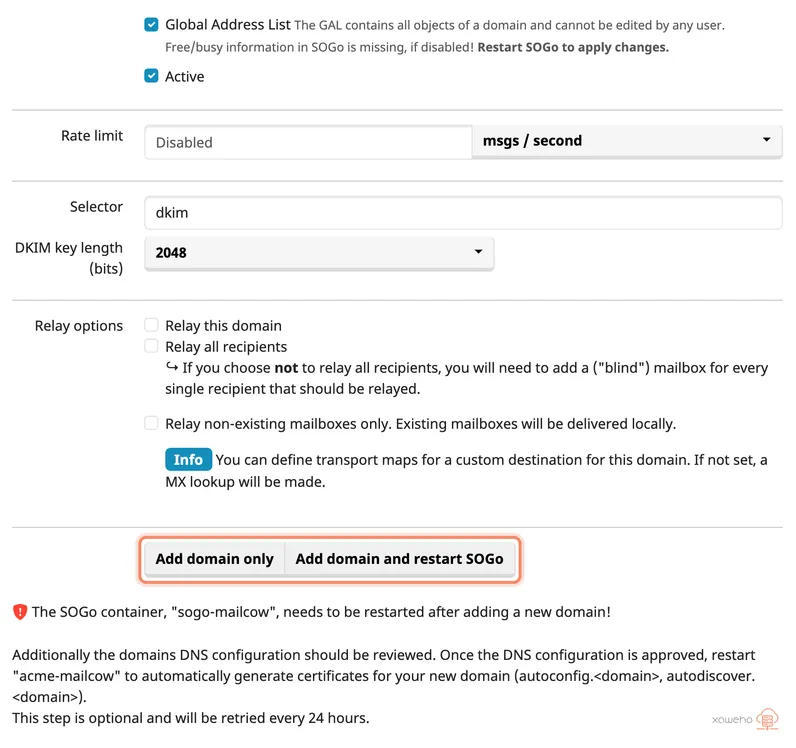
5. There are two buttons to save. Below them Mailcow warns: “The SOGo container, “sogo-mailcow”, needs to be restarted after adding a new domain!” The reason: SOGo (webmail, calendars, contacts) reads the list of domains at startup. Until it restarts, the new domain is missing there.
- Add domain and restart SOGo adds the domain and restarts SOGo right away. Use it when you add one domain.
- Add domain only just adds the domain. Use it when you add several domains in a row, then restart SOGo once via E-Mail → Restart SOGo: the Restart container dialog opens, and nothing restarts until you click Restart now.
The restart affects every user on your instance, not just the new domain: there’s one SOGo container for the whole server. In the Restart container dialog, Mailcow notes that a restart may take a while to complete. The second paragraph of the note says to review the domain’s DNS configuration and restart “acme-mailcow” (certificates for autoconfig. and autodiscover. of the new domain). Mailcow itself calls that restart optional and retries it every 24 hours. DNS is the next step.
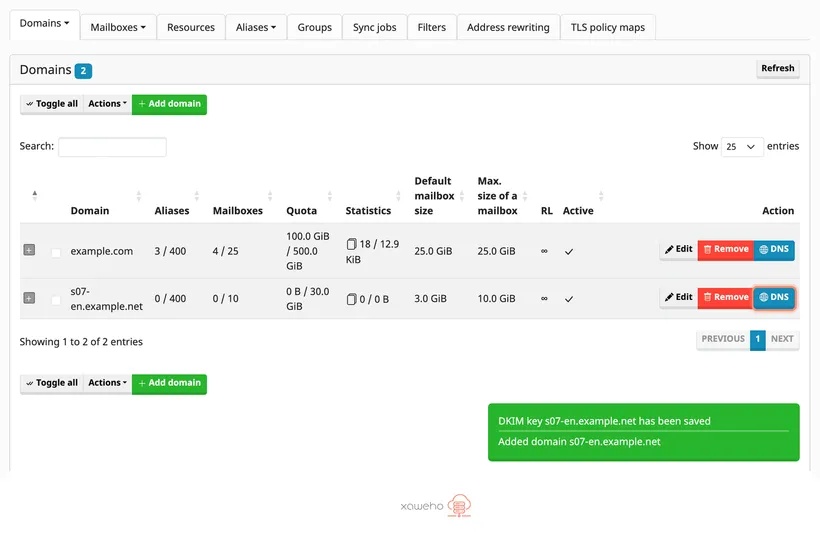
6. Mailcow reports “DKIM key … has been saved” and “Added domain …”. The new domain shows up in the list, still with 0 aliases, 0 mailboxes and 0 B of assigned storage.
Next: set up DNS
For other servers to find your new domain and trust its mail, it needs DNS records: MX, SPF, DKIM, DMARC, plus autoconfig and autodiscover for automatic mail app setup. The DNS button in the domain’s row shows you the exact values (the “DNS Records” dialog). Which record does what, how to enter the long DKIM value and how to check that everything is in place: Mailcow DNS records: the checklist.
You create mailboxes in the Mailboxes tab, as described in Create, edit and lock mailboxes. If a client or colleague should manage the domain themselves, create a domain admin: System → Configuration → Access ▾ → Administrators, card Domain administrators, button Add domain administrator.
Editing a domain: changing limits
Click Edit in the domain’s row. Edit object opens with the tabs Edit domain, Rate limit, Spam filter, Quota warning BCC, MTA-STS and Domain wide footer. The limits are in the first tab, with slightly different names than when adding: Max. aliases, Max. possible mailboxes, Default mailbox quota, Max. quota per mailbox (MiB) and Domain quota. Then Save changes.
You can’t go below what’s already in use. With one mailbox in the domain, Mailcow refuses Max. possible mailboxes 0 with “Max. mailboxes must be greater or equal to 1”. If a mailbox has a 1024 MiB quota, a smaller per-mailbox ceiling fails with “Mailbox quota must be greater or equal to 1024 MiB”. The same goes for the domain quota and the sum of all assigned quotas. In that case, lower individual mailbox quotas first.
Changing the Default mailbox quota doesn’t touch existing mailboxes. Mailcow only stores it on the domain.
You switch on MTA-STS in the tab of the same name; the steps are in the DNS checklist under With the Mail Server: the extras. The domain’s allowlist and denylist live in the Spam filter tab.
Deactivating a domain
Untick Active under Edit and save, or for several domains at once: tick their rows, then Actions ▾ → Deactivate.
- Login: according to Mailcow’s source code, nobody can log in with any mailbox of the domain anymore, not even with an app password: at login, Mailcow checks whether both the mailbox and the domain are active.
- Data: mailboxes, aliases and mail stay untouched. Tick the box again and everything is back.
- Incoming mail: don’t count on a deactivated domain refusing mail. On our test server, Mailcow kept answering
250 Okin the SMTP dialog for an existing mailbox of a deactivated domain, so it accepted the address.
Deleting a domain
1. Click Remove in the domain’s row. Mailcow asks in the Confirm deletion dialog and names the domain. Delete now deletes it.
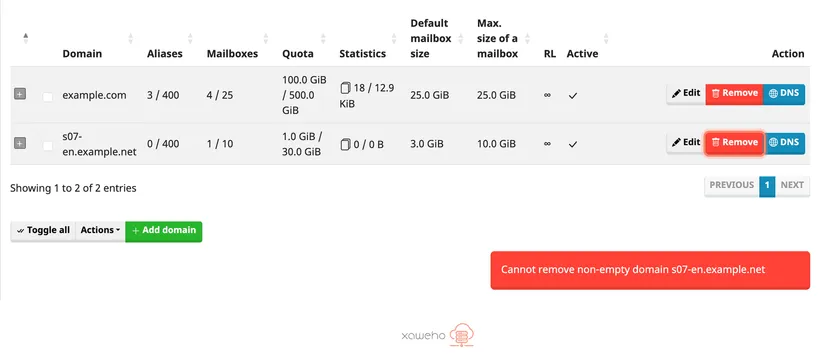
2. If the domain still has mailboxes, Mailcow stops: “Cannot remove non-empty domain …”. Delete the mailboxes in the Mailboxes tab first. What happens to their mail, calendars and contacts is in Create, edit and lock mailboxes.
Once the domain is empty, Mailcow reports “Domain … has been removed”. According to the source code, these go with it:
- all aliases of the domain and all domain aliases pointing to it,
- its assignment to domain admins. A domain admin left without any domain is deleted entirely,
- the domain’s allowlist and denylist, BCC entries and MTA-STS settings.
The DKIM key stays. Mailcow then lists it under System → Configuration → Options ▾ → ARC/DKIM keys as “Key unused”. If you add the same domain again later, Mailcow reuses that key (“A DKIM key did already exist”), and your DKIM record in DNS still matches. Don’t need it anymore? Tick the key there, then Remove.
Templates for new domains
If you often add domains with the same limits, a template saves the typing: Domains ▾ → Templates, card Domain Templates, button Add Template. A template has the same limits and switches as the “Add domain” dialog. Instead of domain and description, you give it a name under Template. Pick it under Template when adding a domain and it fills in the fields.
Two things that are easy to miss:
- A template only applies when adding. Change it and existing domains stay as they are.
- The Default template can be edited, but neither renamed nor deleted. It’s always preselected when the dialog opens.
Second domain, same mailboxes: domain alias
If another domain should just point to the same mailboxes, say the .com next to your main domain, you don’t need a second domain with its own mailboxes. That’s what a domain alias is for: Aliases ▾ → Domain aliases, button Add domain alias. How it works and what Mailcow doesn’t carry over automatically: Setting up aliases and a catchall. A name that’s already an alias domain is refused under Add domain.
At xaweho (Mail Server): on your instance you add as many domains as you need. Mailcow doesn’t count them when adding, and your plan is billed by storage, not by domains or mailboxes (Mail Server). The real limit is your plan’s storage. Mailcow doesn’t check whether the domain quotas of all domains together fit into it, so keep an eye on that yourself. When it runs short, request a bigger plan in the customer center.
You set the DNS records for your domains at your DNS provider; on request we check them via ticket. If you move to us with a migration package, we create domains, mailboxes and aliases from your list. What else we set up for you and what counts as hands-on work is in What you set without root, and what goes via ticket.
Frequently asked questions
How many domains can I add? Mailcow has no maximum: when adding, it checks the name and the limits, but not how many domains already exist. On the Mail Server, your plan doesn’t cap the number either; it’s billed by storage.
Why does Mailcow refuse the fourth mailbox when 10 are allowed? Because the domain’s storage is almost fully assigned. With Mailcow’s defaults, 3 × 3072 MiB fit into 10240 MiB; the remaining 1024 MiB aren’t enough for a fourth mailbox with the default quota. Raise Domain quota under Edit or give the mailboxes less quota.
Do I really have to restart SOGo? Mailcow asks for it after every new domain, because SOGo reads the domains at startup. If you add several, one restart at the end is enough.
Does a domain with umlauts or other non-ASCII characters work?
Yes. Mailcow stores it in the ASCII form used in DNS (Punycode) and shows both spellings in the table. On our test server, s07-bär.example.net became xn--s07-br-fua.example.net.
Can I add the domain before I switch the MX? Yes. Mailcow doesn’t check any DNS records when adding; our test domain had none at all. Mail from the internet only reaches you once the MX points to your server. So before the move you can calmly create mailboxes and pull the mail over with sync jobs. Keep in mind: from the moment you add it, your server answers for the domain itself. If a mail server asks it about an address that doesn’t exist there, it refuses it with “User unknown”.
Can a domain admin add domains? No. Adding and deleting domains is reserved for the admin; a domain admin only manages the domains you assign to them.
What’s next
- Mailcow DNS records: the checklist: set up and check the records for the new domain
- Create, edit and lock mailboxes: the first mailboxes in the new domain
- The Mailcow admin interface: where things are: where the rest of the settings live
- Setting up aliases and a catchall: aliases, catch-all and domain aliases
- What you set without root, and what goes via ticket: what you do yourself and what we take over
- Move mailboxes with Mailcow sync sources and sync jobs: pull the mail from your old provider
Next steps
Mailcow DNS records: the checklist
Which DNS records Mailcow needs, where to find the exact values and how to check them. With our values for Mailhosting and the extras on the Mail Server.
Create, edit and lock mailboxes
Create a mailbox, assign storage, set a new password, block logins or delete it: how you manage the mailboxes of your domain as domain admin.
The Mailcow admin interface: where things are
A map of the Mailcow admin interface: header, System, E-Mail, quarantine and Queue Manager. What lives where, and which buttons hit the whole server.
Setting up aliases and a catchall
Route several mail addresses into one mailbox — info@, kontakt@, presse@ all in a single inbox. Plus a catchall for every typo address.
Sources and last updated
- mailcow source 2026-11: adding, editing and deleting domains (functions.mailbox.inc.php) · as of
- mailcow source 2026-11: the "Add domain" dialog and templates (modals/mailbox.twig) · as of
- mailcow source 2026-11: SOGo reads the domain list at startup (bootstrap-sogo.sh) · as of
- mailcow source 2026-11: login only with an active mailbox and active domain (functions.auth.inc.php) · as of
- mailcow source 2026-11: rate limit for authenticated senders (rspamd.local.lua) · as of
- mailcow docs: tags for domains and mailboxes · as of
- RFC 8301: key sizes for DKIM
- Tested with
- Mailcow 2026-11 · SOGo 5.12.13
- Last updated