For other mail servers to know where to deliver mail for your domain, and to believe your mail really comes from you, your domain needs a handful of DNS records. Here’s each of them with its purpose in one sentence. Plus: where Mailcow shows you the exact values, what the dialog doesn’t tell you and how to check that everything is in place. You need this when you connect a new domain, move from another provider or mail isn’t arriving.
With Mailhosting: if your domain uses our name servers, for example because you registered it with us, we set all the records for you, including autoconfig and autodiscover. You don’t have to do anything. If your DNS lives with another provider, you enter the records there yourself. The values are further down, and we help you free of charge via ticket.
With the Mail Server (admin): you set the records for your domains at your DNS provider. Mailcow shows you the values per domain, and on request we check them via ticket. We set up the server name, sending IP and reverse DNS when we provision your instance. What’s extra on the Mail Server is below.
The checklist
| Record | Name · type | What it’s for | Needed? |
|---|---|---|---|
| MX | your domain (@) · MX |
Tells other mail servers which server to deliver mail for your domain to. | yes |
| A/AAAA of the mail server | server name · A, AAAA | Resolves the mail server’s name to its IP address. MX, autoconfig and autodiscover point to this name. | yes, belongs to the server, not your domain. We set it. |
| SPF | @ · TXT |
Lists the servers allowed to send with your domain as the sender. | yes, for delivery |
| DKIM | dkim._domainkey · TXT |
Public key that recipients use to verify the signature on your mail. | yes, for delivery |
| DMARC | _dmarc · TXT |
Tells recipients how to handle mail that passes neither SPF nor DKIM, and where to send reports. | recommended, required at volume |
| autoconfig | autoconfig · CNAME |
Mail apps like Thunderbird fetch the server settings here. | part of the basics, per the Mailcow docs |
| autodiscover | autodiscover · CNAME |
The same in Outlook’s format. | part of the basics, per the Mailcow docs |
| Autodiscover SRV | _autodiscover._tcp · SRV |
Points to the server’s autodiscover service, port 443. | advanced setup, per the Mailcow docs |
| PTR (reverse DNS) | the server’s IP address · PTR | Leads from the sending IP back to the server name. | yes, belongs to the IP, not your domain. With Mailhosting it points to mx2.xaweho-host.de; on the Mail Server we set it up. |
| MTA-STS | mta-sts · CNAME and _mta-sts · TXT |
Requires sending servers to use TLS with a valid certificate. | optional, only when MTA-STS is switched on (Mail Server) |
| TLS-RPT | _smtp._tls · TXT |
Address for reports when encrypted delivery to you fails. | optional, goes with MTA-STS |
| TLSA (DANE) | _25._tcp.<server name> · TLSA |
Puts a fingerprint of the server certificate into DNS. Only works with DNSSEC. | optional (Mail Server) |
Where the “Needed?” comes from: the Mailcow docs call MX and A mandatory and count the two CNAMEs as the basic set every domain needs. Since February 2024, Gmail has required all senders to use SPF or DKIM and to have valid forward and reverse DNS records, so the PTR too. Anyone sending 5,000 or more messages a day to Gmail needs SPF and DKIM, plus DMARC.
Where to find the exact values
1. Log in as domain admin at /domainadmin, or as admin at /admin on the Mail Server. Which login is for what: Mailcow login: where users, domain admins and admins sign in
2. At the top, E-Mail → Configuration, tab Domains. As domain admin you land here right after logging in.
3. In your domain’s row, click DNS on the right.
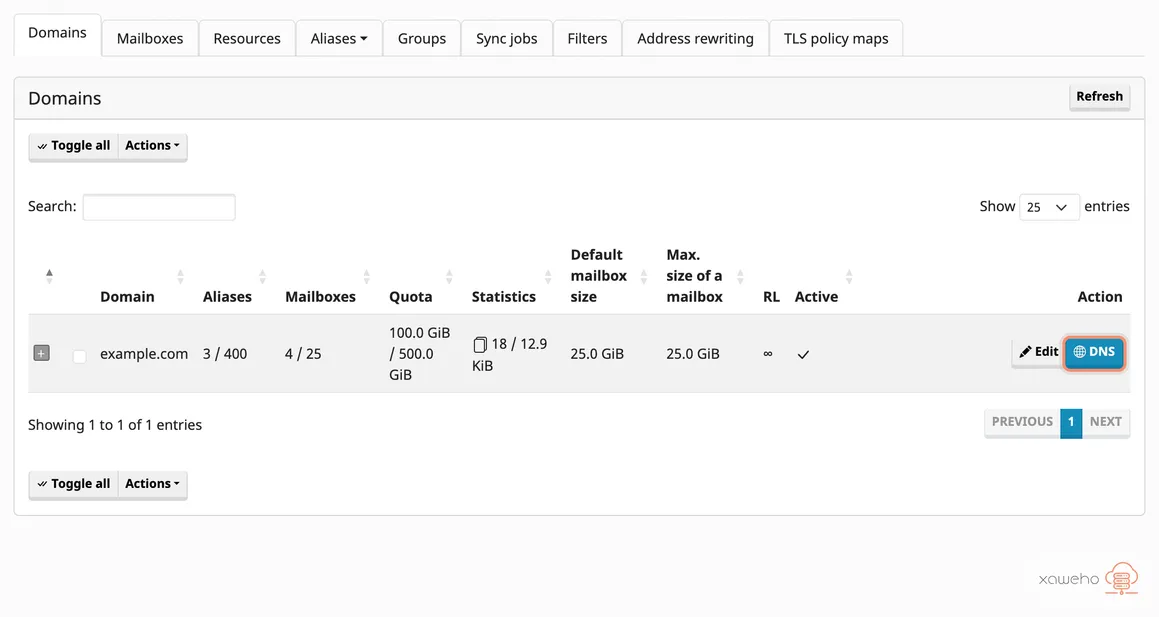
4. The “DNS Records” dialog lists every record with Name, Type, Correct Data (what it should be) and Current State (what Mailcow currently finds in DNS).
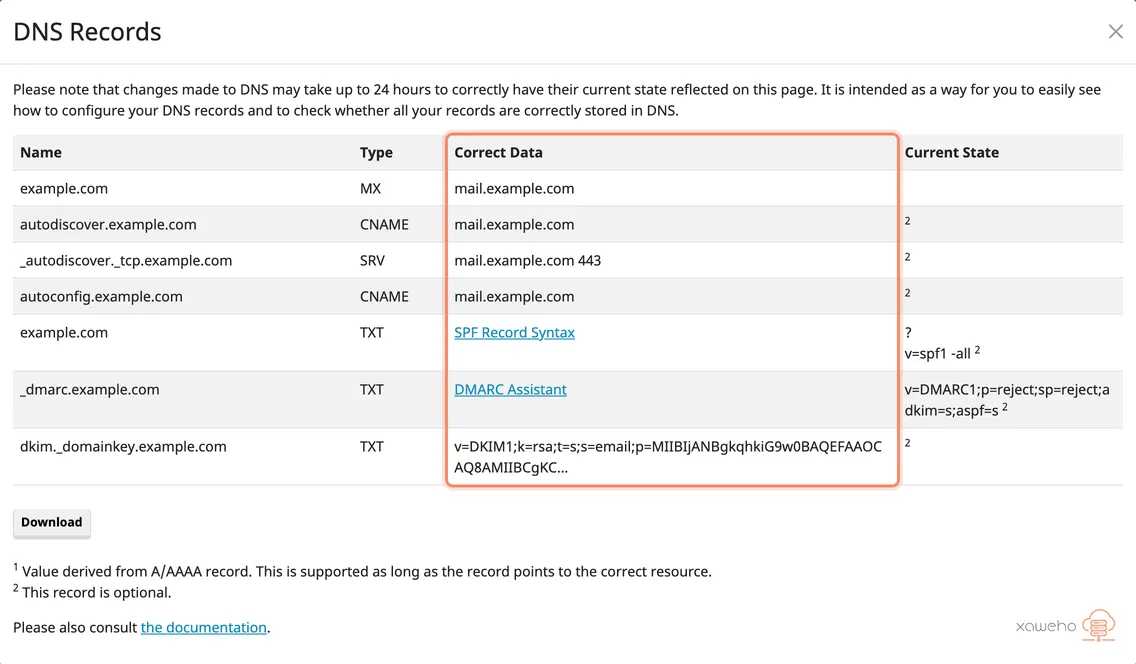
In the screenshot, example.com is a reserved example domain with no connection to this server. That’s why nothing matches in the status column: it shows what example.com actually has in DNS. For MX the cell stays empty because example.com’s MX has no target (dig shows 0 .). The server name is replaced with mail.example.com, and we shortened the DKIM key.
What the dialog doesn’t tell you
- SPF and DMARC: “Correct Data” only shows the links “SPF Record Syntax” and “DMARC Assistant”, not a ready-made value. You build that yourself. The values for Mailhosting are below.
- Priority and weight: for MX the dialog only shows the server name, for SRV only “server name 443”. The Mailcow docs use priority 10 for MX and priority 0, weight 1 for SRV. With a single MX the number doesn’t matter. It only counts when there are several: senders try the lowest value first (RFC 5321).
- DKIM is long: including
v=DKIM1;k=rsa;t=s;s=email;p=, the value is 420 characters (2048-bit key, counted on the test server). A single string in a TXT record can hold at most 255 characters (RFC 1035). Long values therefore sit in DNS in several pieces, and recipients join them back together without spaces (RFC 6376). Copy the key in full. If your DNS provider’s interface doesn’t split it for you, enter it in pieces of at most 255 characters. Mailcow shows the same value under Edit on the domain, at the bottom under “Domain: example.com (dkim._domainkey)”. - Download: the button gives you a text file
example.com.txtin zone-file format. A pitfall when importing it: the MX line has no priority. For SPF, DMARC and TLS-RPT the file copies whatever is in DNS right now, or writes a commented-out line with**TODO**. For example.com it even contained a TXT line consisting of nothing but a question mark. Use the file as a cheat sheet, not as an import.
Checking that everything is right
In the Mailcow dialog
The “Current State” column shows one of three things per row:
- A check mark: the record is there and matches.
- A different value: DNS has something else. Mailcow shows what it found.
- Just a small ²: Mailcow found nothing matching. The footnote says “This record is optional”, but Mailcow puts the ² on every record without a match. On the test server it even showed up on the MX of a domain that has no DNS records at all. So a ² is not an OK.
Three special cases:
- DKIM: a wrong key looks exactly like a missing one: just the ².
- SPF: Mailcow puts a check mark in front of the record it found if it sees its server’s addresses allowed in it, otherwise a question mark. According to the source code, both the server’s IPv4 and IPv6 address have to be allowed. A server without IPv6 therefore gets a question mark even when the record is right. Check SPF with a test message as well.
- DMARC: Mailcow only shows what it finds. It doesn’t check whether the record makes sense.
The dialog itself points out that it can take up to 24 hours for changes to show up in the state.
With dig or nslookup
dig queries DNS directly. Replace example.com with your domain:
dig +short MX example.com
dig +short TXT example.com
dig +short TXT dkim._domainkey.example.com
dig +short TXT _dmarc.example.com
dig +short CNAME autoconfig.example.com
dig +short CNAME autodiscover.example.com
dig +short SRV _autodiscover._tcp.example.com
On Windows you use nslookup and give the type with -type=:
nslookup -type=MX example.com
nslookup -type=TXT _dmarc.example.com
With Mailhosting you should see:
- MX:
10 mx2.xaweho-host.de. - TXT of the domain: among others
"v=spf1 mx a:mx2.xaweho-host.de -all" - DKIM: a value starting with
"v=DKIM1;, in several quoted pieces. That’s correct (see above). - DMARC: a value starting with
"v=DMARC1and containingp=quarantine - autoconfig and autodiscover:
mx2.xaweho-host.de.
A pitfall: if you enter the full name in your DNS provider’s “Name” field and the provider appends the domain again, the record ends up at dkim._domainkey.example.com.example.com. The query above then finds nothing. That’s exactly how you spot it.
With a test message
Send a message from your domain to a mailbox of your own at another provider and look at the message headers there. The Authentication-Results line (RFC 8601) should read spf=pass, dkim=pass and dmarc=pass. What to do on fail is in Building mail reputation.
With Mailhosting: the values
You only need this if your DNS lives with another provider. If your domain uses our name servers, we set these records for you. Not sure where your DNS is? dig +short NS example.com shows the responsible name servers. If in doubt, ask via ticket.
In the table, example.com stands for your domain:
| Name | Type | Value |
|---|---|---|
@ |
MX | priority 10, target mx2.xaweho-host.de |
@ |
TXT | v=spf1 mx a:mx2.xaweho-host.de -all |
dkim._domainkey |
TXT | the key from the DNS dialog, “Correct Data” column |
_dmarc |
TXT | v=DMARC1; p=quarantine; rua=mailto:dmarc@example.com |
autoconfig |
CNAME | mx2.xaweho-host.de |
autodiscover |
CNAME | mx2.xaweho-host.de |
_autodiscover._tcp |
SRV | priority 0, weight 1, port 443, target mx2.xaweho-host.de |
MX, SPF and DMARC match what we set on our name servers. Every domain gets its own DKIM key (selector dkim, 2048 bits). Mailcow doesn’t specify priority and weight for the SRV record; 0 and 1 come from the Mailcow docs.
Three things to watch during the switch:
- Delete old MX records. If an MX from the old provider stays, senders deliver all mail, some of it, or mail during outages there, depending on its priority (RFC 5321).
- Exactly one SPF record. Two TXT records starting with
v=spf1make the SPF check invalid, and recipients treat that as an error (RFC 7208). Replace the old record instead of adding a second one. - Take other senders along. The
-allat the end means: every server not listed is not allowed (RFC 7208). If another service sends with your domain as the sender, say your website’s contact form or a newsletter tool, it belongs in this one SPF record. If your domain is on our name servers, tell us via ticket which service to add.
All entered? Open a ticket and we’ll check your records.
With the Mail Server: the extras
As admin you see three more rows at the top of the DNS dialog: A, PTR and TLSA. They belong to your instance’s server name, not to your domains. The server name is in your activation email and in the customer center.
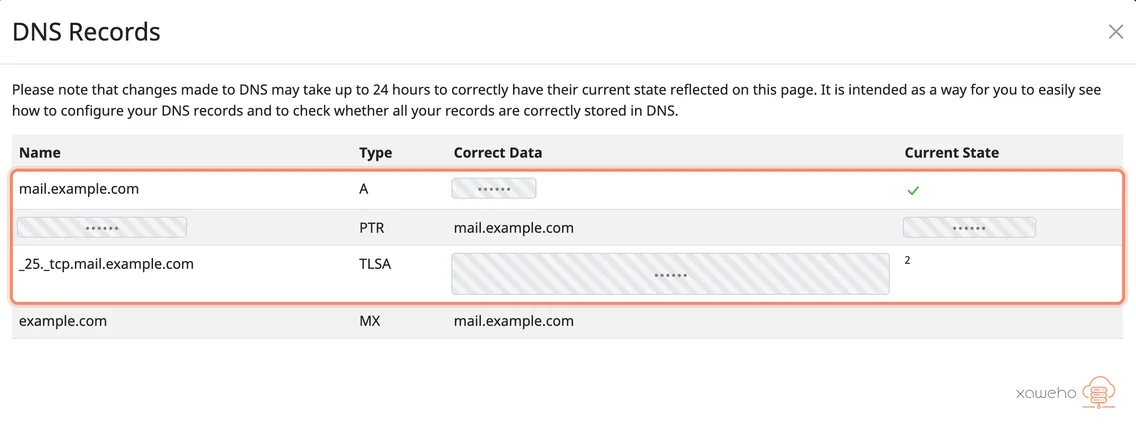
- A and PTR: we set up the server name and sending IP with matching reverse DNS when we provision your instance, and the sending IP is yours alone. In the A row, “Correct Data” shows the IPv4 address your server uses to reach the outside world. Mailcow looks it up itself. A check mark means the server name resolves to exactly that address. The PTR row checks the way back; double-check with
dig +short -x <IP from the A row>: the answer must be your server name. - TLSA (DANE): the row
_25._tcp.<server name>puts a fingerprint of the server certificate into DNS. DANE only works if the zone is signed with DNSSEC (RFC 7672, and Mailcow’s MTA-STS tab says the same). The record hangs off the server name, not your domain. If you want to use DANE, ask via ticket. - DKIM: Mailcow creates a key when you add a domain. The “Add domain” dialog suggests the selector
dkimand 2048 bits, which is also how our instances are set up. - SPF: Mailcow doesn’t give you a value. On Mailhosting we use
v=spf1 mx a:mx2.xaweho-host.de -all:mxallows the addresses of the servers your MX points to,a:the address of a specific name (RFC 7208). On the Mail Server you put your server name there, plus every other service that sends with your domain. - MTA-STS and TLS-RPT: these apply per domain. MTA-STS is switched on via Edit in the domain’s row → tab MTA-STS → enter your server name under “MX server” → tick Active → Save changes. With MTA-STS active, the DNS dialog shows three more rows:
mta-sts.example.comas a CNAME to the server name,_mta-sts.example.comas a TXT withv=STSv1;id=…;and_smtp._tls.example.comas a TXT, where again you only get a link instead of a value. The value takes the formv=TLSRPTv1; rua=mailto:…(RFC 8460). Mailcow needs the CNAME to create a valid certificate formta-sts.example.com. When the policy changes, the TXT record needs a newid, or sending servers won’t pick it up. Mailcow generates the newiditself when you save; you have to update it in your DNS (all per the Mailcow docs). So after every change in the MTA-STS tab, compare the TXT value in the dialog with your DNS.
On request we check your records via ticket.
Frequently asked questions
I’ve entered everything, but the dialog still shows nothing.
Mailcow itself says it can take up to 24 hours. In the meantime, ask dig. If dig shows the right value, the record is in DNS.
Can my domain stay with my current DNS provider? Yes. With Mailhosting you then enter the values from above there yourself, and we help free of charge via ticket. Only the mail records from the checklist point to us. You don’t touch your website’s records for this.
Who gets the DMARC reports with Mailhosting?
The address dmarc@ at your domain; that’s what the rua entry says. If there’s no mailbox, alias or catchall for it, the reports go nowhere. If you want to read them, create an alias dmarc@ pointing to a mailbox: Setting up aliases and a catchall. Expect machine-readable XML files (RFC 9990), not readable messages.
Do I need autoconfig and autodiscover? They’re there for setting up mail apps automatically, and the Mailcow docs count the two CNAMEs as part of the basic set for every domain. If you set up your mail apps by hand anyway, the server details are all you need.
Why does Mailcow show a question mark for SPF even though the record is right?
The check in the dialog requires both the server’s IPv4 and IPv6 address in the SPF record. If the server has no IPv6 address, the question mark stays. That includes Mailhosting: mx2 has no IPv6 address. Rely on spf=pass in the test message.
What’s next
- Building mail reputation: when the records are right and mail still lands in spam
- Move mailboxes with Mailcow sync sources and sync jobs: bring the mail over from your old provider before you switch the MX
- Mailcow login: where users, domain admins and admins sign in: users, domain admins and admins at a glance
- Setting up aliases and a catchall: for example
dmarc@for the DMARC reports - Server details reference: ports and server names for manual setup
Next steps
Building mail reputation — so your mails actually arrive
What you can do as domain admin and user so receiving mail servers don't sink your mails in the spam folder — reputation, content, sender practice.
Add a domain to Mailcow and set limits
Add a domain in Mailcow, cap mailboxes, aliases and storage, create the DKIM key, then edit or delete it later: the workflow for admins of your Mail Server.
Move mailboxes with Mailcow sync sources and sync jobs
Mailcow sync jobs step by step: add a sync source, one job per mailbox, read the log, clean up. Plus the pitfalls of moving mail with imapsync.
Mailcow login: where users, domain admins and admins sign in
Mailcow has three login pages: one for users, one for domain admins, one for admins. Which address and username you need, and where you land.
Sources and last updated
- mailcow docs: DNS setup (Prerequisites) · as of
- mailcow docs: Setting up MTA-STS · as of
- mailcow source code 2026-11: DNS check (dns_diagnostics.php) · as of
- Google: Email sender guidelines (Gmail Help)
- RFC 5321 (October 2008): SMTP, section 5.1 – MX preference
- RFC 7208 (April 2014): Sender Policy Framework (SPF)
- RFC 6376 (September 2011): DomainKeys Identified Mail (DKIM)
- RFC 9989 (May 2026): DMARC
- RFC 9990 (May 2026): DMARC aggregate reporting
- RFC 1035 (November 1987): Domain names, section 3.3 – string length
- RFC 8461 (September 2018): MTA-STS
- RFC 8460 (September 2018): SMTP TLS Reporting
- RFC 7672 (October 2015): DANE for SMTP
- RFC 8601 (May 2019): Authentication-Results header field
- Microsoft Learn: nslookup · as of
- Tested with
- Mailcow 2026-11 · SOGo 5.12.13
- Last updated