Since Mailcow 2025-03 there are three separate login pages: one for users, one for domain admins, one for admins. Which one you need depends on what you’re about to do: read mail or manage mailboxes. If you do both, you have two accounts with their own passwords, and you log in on the matching page for each.
Who am I?
| Role | Login page | Username | What you do there |
|---|---|---|---|
| User: you have an email address | start page / |
your full email address | Mail, calendars and contacts in SOGo webmail; password, app passwords and spam filter in the Mailcow settings |
| Domain admin: you manage the mailboxes of a domain | /domainadmin |
a separate username without ”@”, not your email address | Create and change mailboxes, aliases and groups for your domain |
| Admin: you have your own mail server | /admin |
admin username | Domains, domain admins and the settings of the whole server |
The server name goes in front of the path, for example https://<server-name>/domainadmin:
- Mailhosting:
mx2.xaweho-host.de. Users log in athttps://mx2.xaweho-host.de/, domain admins athttps://mx2.xaweho-host.de/domainadmin. There’s no admin access with Mailhosting: you share the server with other customers, and the complete admin interface comes with the Mail Server. - Mail Server: the server name of your own instance. It’s in your activation email and in the customer center, along with the login details for the admin interface. Your instance has all three pages: you’re the admin, and you create domain admins and mailboxes yourself.
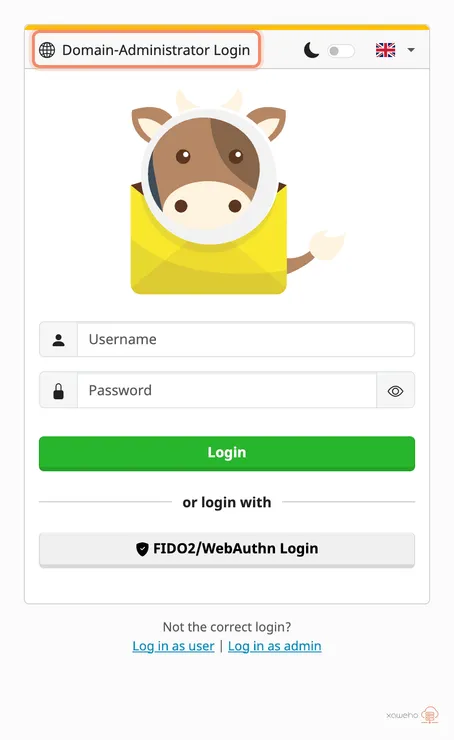
How to tell the pages apart: the top of the login card names the role, and in the standard Mailcow look there’s a colored stripe along the top of the card as well: green for users, yellow for domain admins, red for admins. On the wrong page? The links under Not the correct login? take you to the other two.
The screenshots come from our test server in the standard Mailcow look, with mail.example.com standing in for the server name. On mx2.xaweho-host.de the browser tab says “xaweho Mail Service”.
Logging in as a user
- Open your server’s start page, for Mailhosting
https://mx2.xaweho-host.de/. The top says User Login. - Enter your full email address (the field says “Email address”) and your mailbox password.
- Click Login.
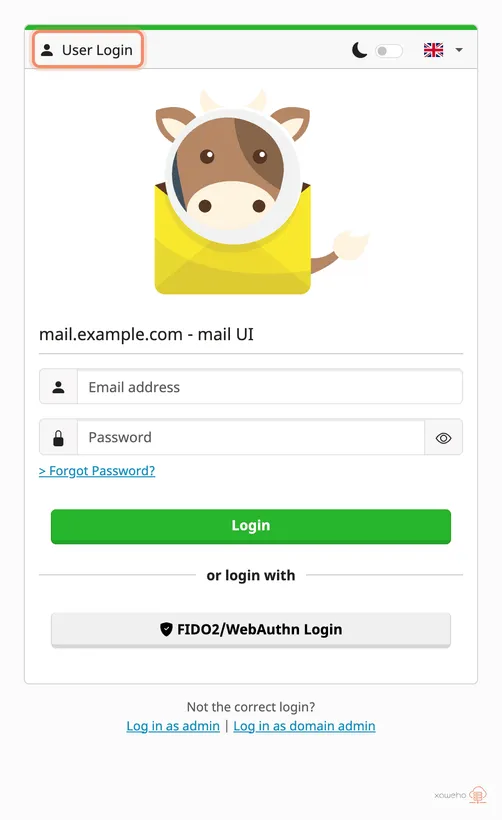
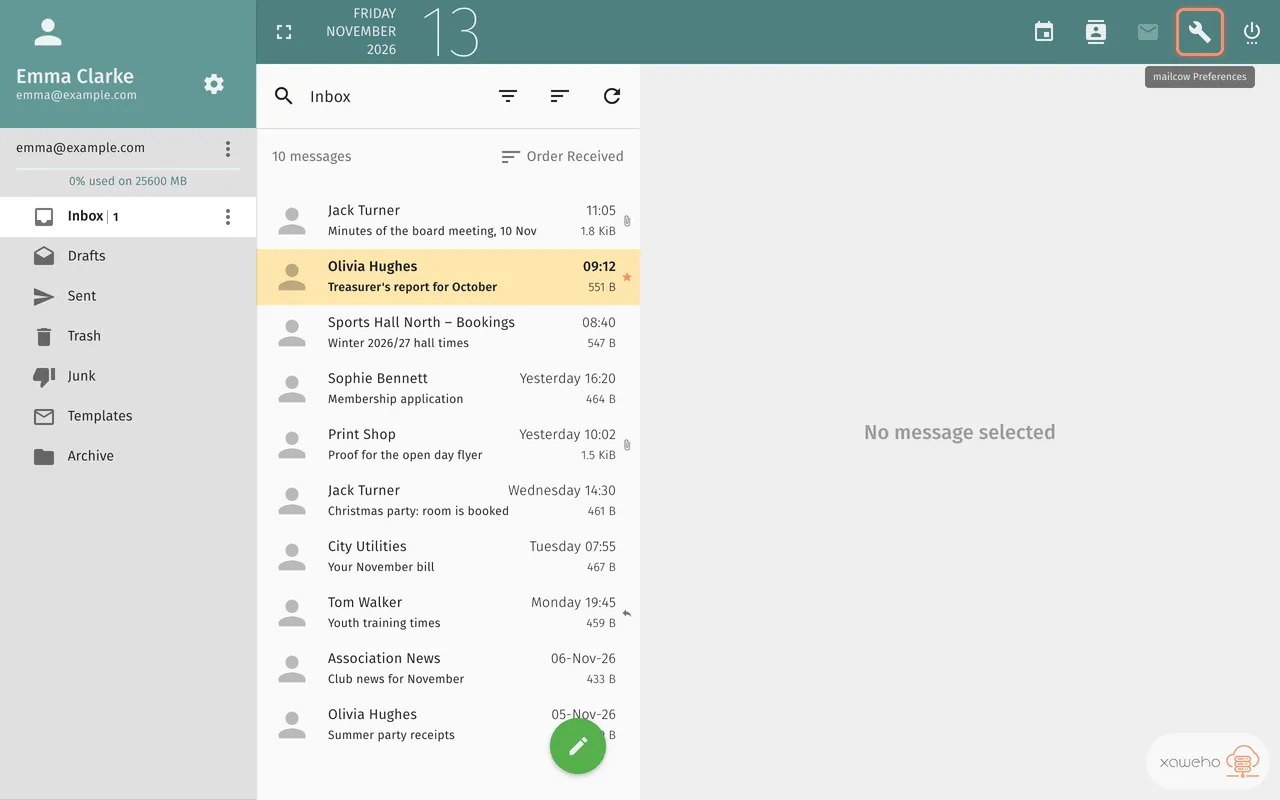
By default you land straight in SOGo webmail, in your inbox. There’s no separate SOGo login anymore since Mailcow 2025-03: open any address under /SOGo without a session and you end up on this login page.
Password, app passwords, spam filter and two-factor don’t live in SOGo but in the Mailcow interface. You get there via the wrench icon at the top right in SOGo (tooltip “mailcow Preferences”), without logging in a second time. Back to webmail via the Webmail → button (Mailbox → General) or Apps ▾ → Webmail in the header.
Common pitfall: after logging in you don’t land in webmail but on the User Settings? Then “Direct forwarding to SOGo” is switched off for your mailbox. You still get to webmail, via Webmail → or Apps ▾ → Webmail. Your domain admin can switch it on under Edit mailbox.
What’s in webmail is covered in SOGo webmail: first login and overview.
Logging in as a domain admin
- Open
/domainadminon your server, for Mailhostinghttps://mx2.xaweho-host.de/domainadmin. The top says Domain-Administrator Login. - Enter the username of your domain admin account. It contains no ”@”, so your email address won’t fit here.
- Enter the password, click Login.
You then land in E-Mail → Configuration, on the Domains tab. There’s no dashboard for domain admins. The header shows User Settings, E-Mail ▾ and Apps ▾, with your username next to them. There’s no System menu: that’s how you know you’re logged in as a domain admin and not as the admin. A click on your name logs you out right away; there’s no user menu.
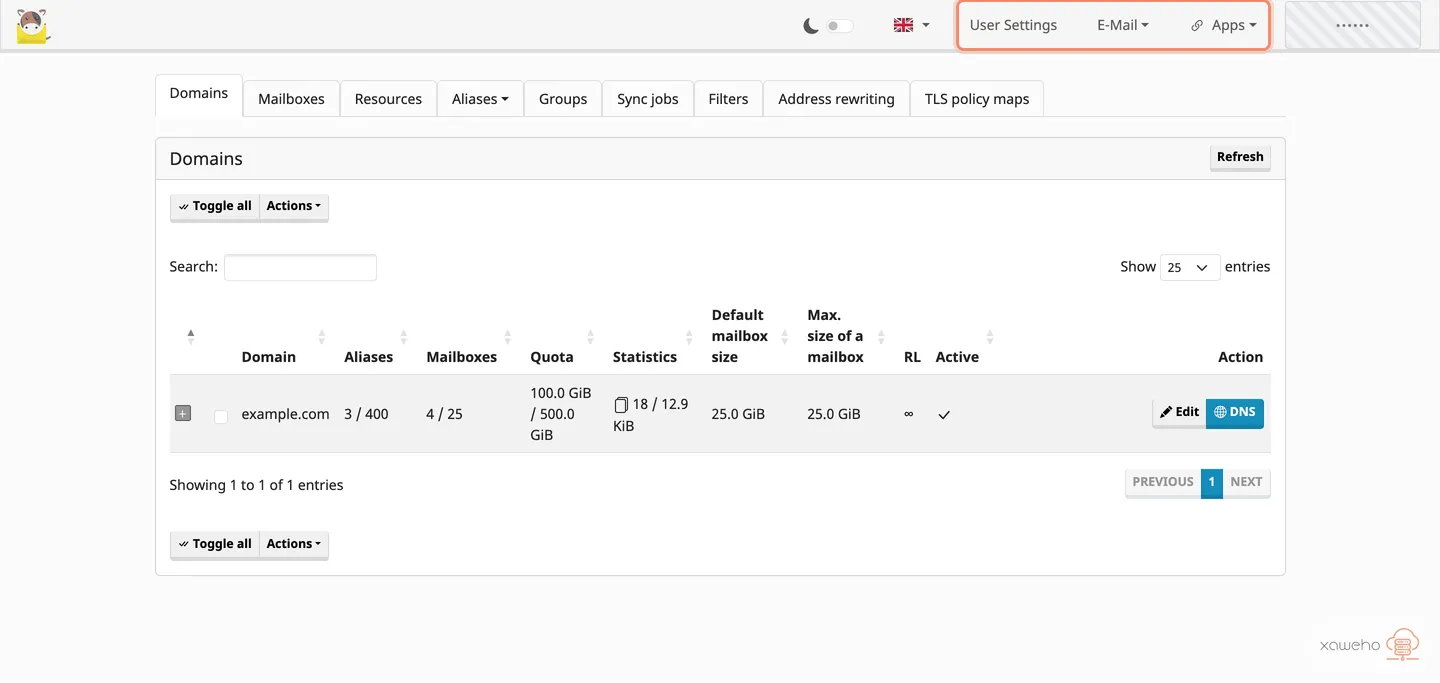
Need to get into a mailbox’s Mailcow settings, say to create an app password there: E-Mail → Configuration → Mailboxes, then Login in that mailbox’s row. You land in that mailbox’s user settings without entering its password. By default a domain admin is allowed to do this (permission “Login as mailbox user”).
First steps as a domain admin are in First login as domain admin.
With Mailhosting: “Login as mailbox user” is switched on for your domain admin account, and so is the permission to change “Direct forwarding to SOGo” on mailboxes.
Logging in as the admin (Mail Server)
- Open
/adminon your instance’s server name. The top says Administrator Login. - Username and password are in your activation email and in the customer center.
- Login.
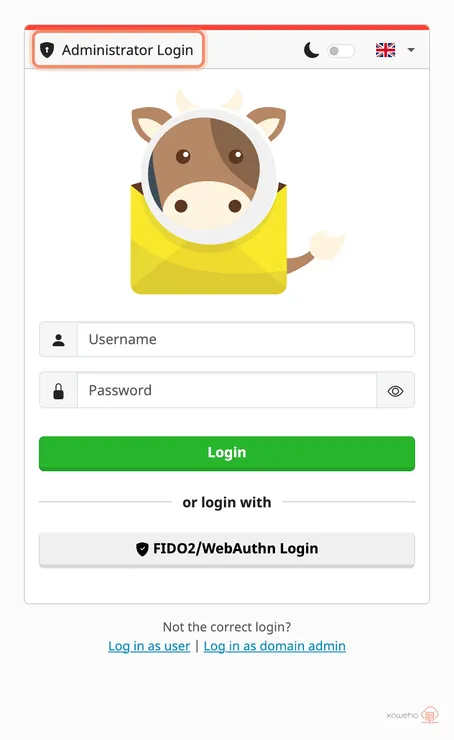
You then land on System → Information. The header shows System ▾, E-Mail ▾ and Apps ▾. Only the admin has the System menu.
With the Mail Server (admin): you create domain admins under System → Configuration → Access → Administrators, card Domain administrators, button Add domain administrator. Login in a domain admin’s row shows you Mailcow through their eyes, without entering their password. Mailboxes have the same button under E-Mail → Configuration → Mailboxes.
Forgot your password
- User: your domain admin sets a new one. They open E-Mail → Configuration → Mailboxes, click Edit in the mailbox’s row, enter the new password in Password (generate) and Confirmation password (repeat), and click Save changes. If they also tick Force password update at next login, Mailcow asks you for a new password right after your next login. On the Mail Server, the admin can do this too.
- Domain admin with Mailhosting: open a ticket. We reset the password.
- Domain admin on the Mail Server: the admin sets a new one: System → Configuration → Access → Administrators, card Domain administrators, Edit, then Password (generate) and Confirmation password (repeat), Save changes.
If you know your password and want to change it: as a user via the wrench icon, then Mailbox → General, section Authentication, Change password. As a domain admin via User Settings → Change password.
Two-factor and FIDO2
If you’ve set up two-factor authentication for your account, Mailcow asks for the second factor when you log in. From then on, mail apps need an app password; the server refuses your normal password there: app passwords for mail clients. With Mailhosting we don’t require two-factor, neither for mailboxes nor for domain admins. A domain admin can require it for individual mailboxes, though: tick Force 2FA enrollment at login under Edit mailbox. The user then has to set up a second factor right after their next login; until they do, the Mailcow interface won’t let them do anything else.
You only need the FIDO2/WebAuthn Login button under the login form if you’ve registered a FIDO2 key for your account beforehand. That only works after logging in with your password: as a user via the wrench icon, then Mailbox → General → Login with FIDO2; as a domain admin under User Settings → Login with FIDO2; then Register FIDO2 device in both cases.
Frequently asked questions
I have a mailbox and I’m the domain admin. Which login do I use?
Depends on what you’re about to do. Reading mail: start page, email address, mailbox password. Managing mailboxes: /domainadmin, domain admin username, domain admin password. They’re two separate accounts.
My old bookmark to …/SOGo doesn’t work anymore. What happened?
Since Mailcow 2025-03, direct SOGo login is switched off. Without a session, /SOGo sends you to the start page. Log in there, and by default Mailcow takes you straight to webmail. Best to point the bookmark at the start page right away.
Can I switch the interface to German? Yes. In Mailcow via the flag at the top right, on the login page as well as in the header. SOGo has its own language setting: gear icon at the top left (Preferences) → General → Language, then save with the round floppy-disk button at the top right.
How do I log out? In Mailcow, click your name or the power icon at the top right; there’s no confirmation. In SOGo, use the icon at the far right of the top bar (tooltip “Disconnect”).
What’s next
Next steps
SOGo webmail — first login and overview
SOGo is the web interface for your Mailcow mailbox. Mail, calendar, contacts, tasks — all in the browser. Here's how to find your way around.
First login as domain admin in the Mailcow GUI
After ordering your Mailhosting plan, you get access to the Mailcow GUI. Here's an overview of what you see as domain admin and where to find what.
The Mailcow admin interface: where things are
A map of the Mailcow admin interface: header, System, E-Mail, quarantine and Queue Manager. What lives where, and which buttons hit the whole server.
Create, edit and lock mailboxes
Create a mailbox, assign storage, set a new password, block logins or delete it: how you manage the mailboxes of your domain as domain admin.
Sources and last updated
- mailcow-dockerized, release 2025-03: separate login pages, no direct SOGo login · as of
- mailcow docs: two-factor authentication · as of
- Tested with
- Mailcow 2026-11 · SOGo 5.12.13
- Last updated