
Mailcow fetches your old mail by itself. You add one sync source, meaning your old server, and one sync job per mailbox. The job copies every folder except spam and junk into the new mailbox over IMAP, in the background, and keeps doing so until you switch it off. By default it deletes nothing on the old server. No extra software needed.
You need this when you move to us from another provider and want to take your mail along. Microsoft 365 and Google have their own guides, because logging in there works via OAuth2 (below).
The screenshots come from our test server in the standard Mailcow look. mail.example.com stands in for the old server, and the mailboxes belong to the test domain example.com.
How it works
- Sync source = the old server: host, port, encryption and login method. You add it once and use it for as many jobs as you like.
- Sync job = one mailbox: which mailbox on our side is the destination, and which username and password Mailcow uses to log in on the old server.
- Under the hood: for each run, Mailcow starts the imapsync program, version 2.314 on our test server.
- Runs repeatedly: after the first run, the job starts again every polling interval, 20 minutes by default.
- Copies only what’s missing: imapsync works incrementally. You can stop a run and continue later without creating duplicates. On the test server, the second run transferred 0 messages and skipped the 3 that were already there.
- Mail only: sync jobs copy mail over IMAP. You import calendars and contacts in SOGo, as an ICS file or as vCard or LDIF: calendar, contacts.
Who can do what
| Sync sources | Sync jobs | |
|---|---|---|
| Domain admin | for your own domain or single mailboxes (visibility Specific domains or Specific users) | for the mailboxes of your own domain |
| Admin (Mail Server) | additionally visibility All users | additionally the Priority column and the Schedule next action |
| User | their own sources, visible only to them; presets without Microsoft 365 and Google | only for their own mailbox, and only with the Sync jobs permission, which is off by default in Mailcow |
Sources with OAuth2 (authentication XOAUTH2 (OAuth2), needed for Microsoft 365 and Google) can only be added by admins and domain admins.
With Mailhosting: every domain admin has the “Sync jobs” permission, so you can set up the move yourself. Log in at
https://mx2.xaweho-host.de/domainadmin. Users don’t have the permission by default. If you want someone to enter their own move, enable it for that mailbox as domain admin: E-Mail → Configuration → Mailboxes, Edit in the row, tab ACL (Permission), tick Sync jobs, Save changes. On mx2 only one sync process runs at a time (Mailcow default), so several jobs run one after another.
With the Mail Server (admin): you have every permission in the table and decide whether users may add their own jobs: E-Mail → Configuration → Mailboxes, Edit in the mailbox’s row, tab ACL (Permission), tick Sync jobs in the list, Save changes. A user with this permission also sees jobs a domain admin created for their mailbox in their own Sync jobs tab, with Edit, Open logs and Remove. How many jobs run at the same time is set under System → Configuration → Options ▾ → Sync jobs: Max. parallel sync processes (1 by default, 1 to 32 allowed) and Bandwidth limit per process (KB/s) (0 = unlimited).
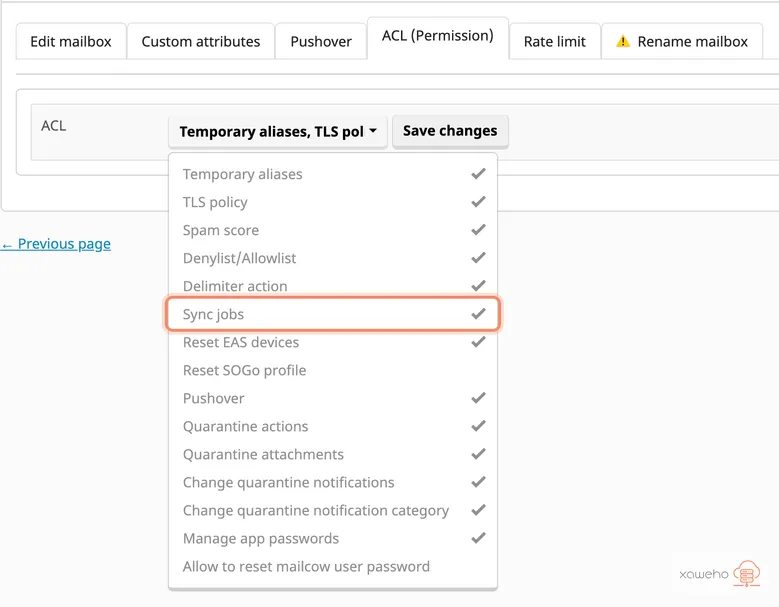
Before you start
- The destination mailbox exists. The job only offers existing mailboxes. To create one: create mailboxes.
- You have the login details for the old server: IMAP server name, username, password.
- The old provider allows IMAP. Mailcow says so itself: many providers (e.g. Gmail, iCloud, Yahoo) require an app password or IMAP access to be enabled in the mailbox settings. Take care of that at the old provider before you add the job.
- The destination mailbox has enough storage. If it’s too small, the job ends with “Target mailbox is over quota”.
Step 1: add a sync source
- Log in as domain admin (where do I log in?) and open E-Mail → Configuration, tab Sync jobs. At the top is the Sync sources card, below it Sync jobs.
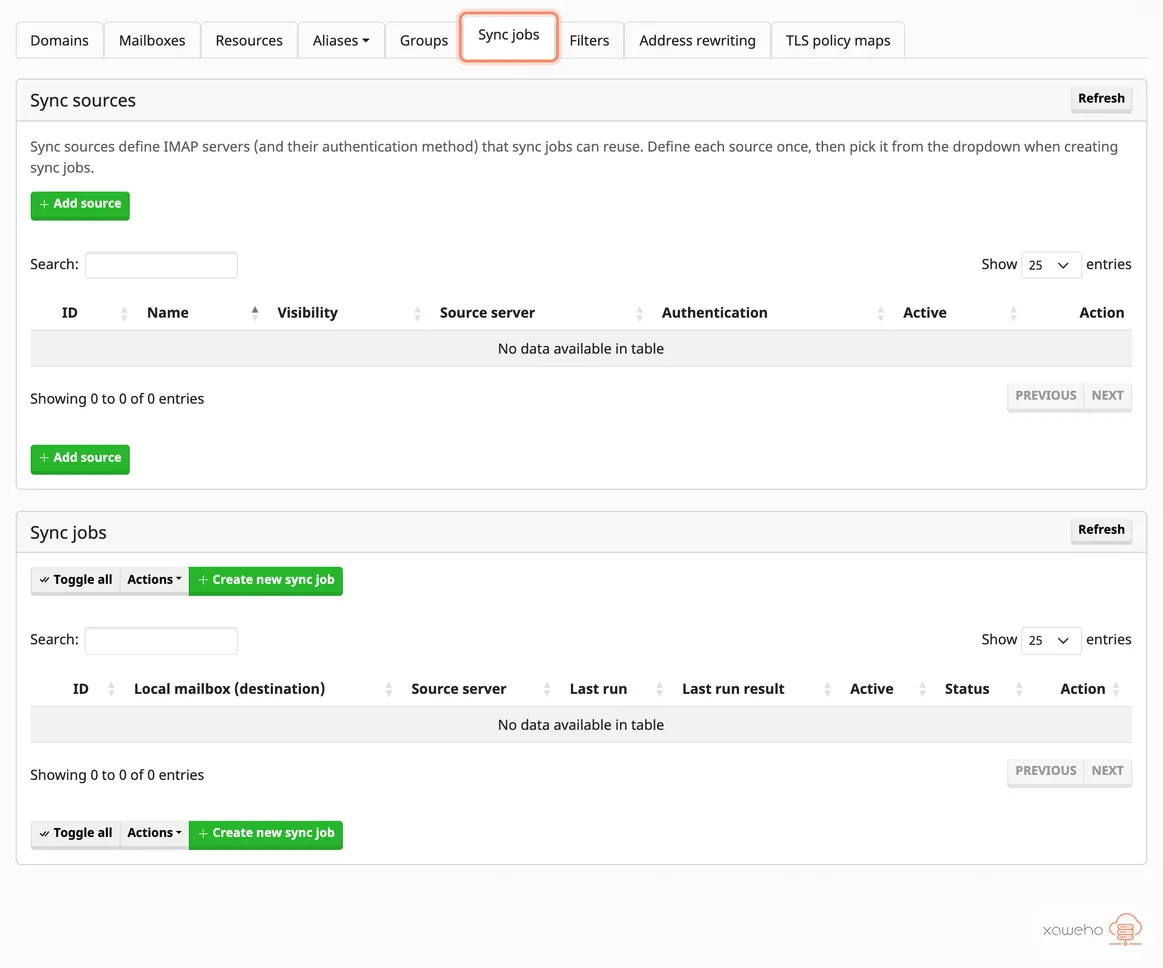
-
Click Add source.
-
If your old provider is listed under Presets, click it. Mailcow then fills in name, host, port, encryption method and authentication. There are presets for Gmail, GMX, WEB.DE, T-Online, iCloud, Yahoo, IONOS and STRATO, and for domain admins and admins also for Microsoft 365 and Google.
-
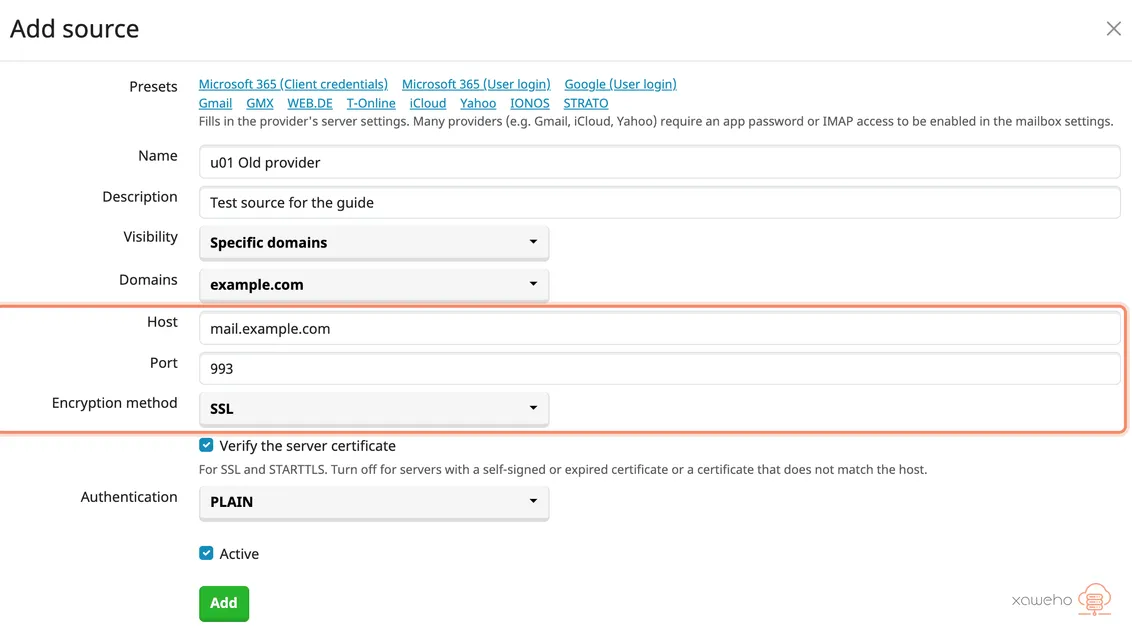
Without a preset, you enter the details by hand:
Field What goes in Name a name for the source, e.g. the old provider’s (that’s what the presets do too) Description free text, up to 255 characters Visibility who can pick the source for their own jobs: Specific domains (then choose the domain) or Specific users Host the old provider’s IMAP server Port usually 993 with SSL, 143 with STARTTLS Encryption method SSL, STARTTLS or PLAIN. PLAIN is unencrypted, and the Mailcow docs strongly advise against it Verify the server certificate leave it on. Only turn it off if the old server has a self-signed or expired certificate or one that doesn’t match the host Authentication PLAIN, LOGIN or CRAM-MD5 for logging in with username and password, XOAUTH2 (OAuth2) for Microsoft 365 and Google. PLAIN is the default, and the presets for IONOS, STRATO, GMX, T-Online and Gmail set PLAIN too -
Leave Active ticked. Click Add.
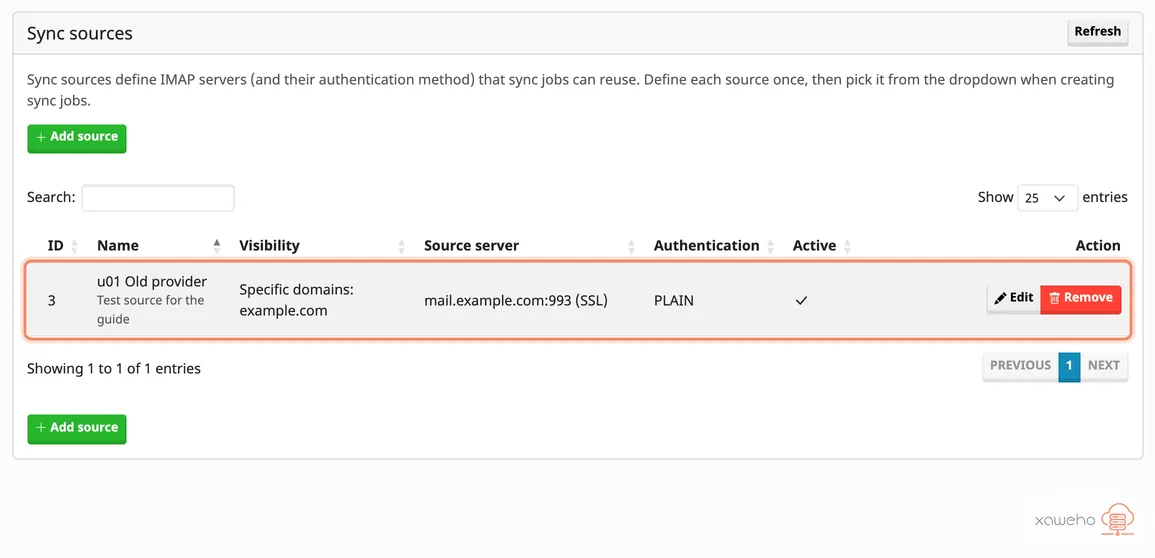
The source then shows up in the list. Edit changes it later, Remove deletes it.
Step 2: add one sync job per mailbox
-
In the Sync jobs card, click Create new sync job.
-
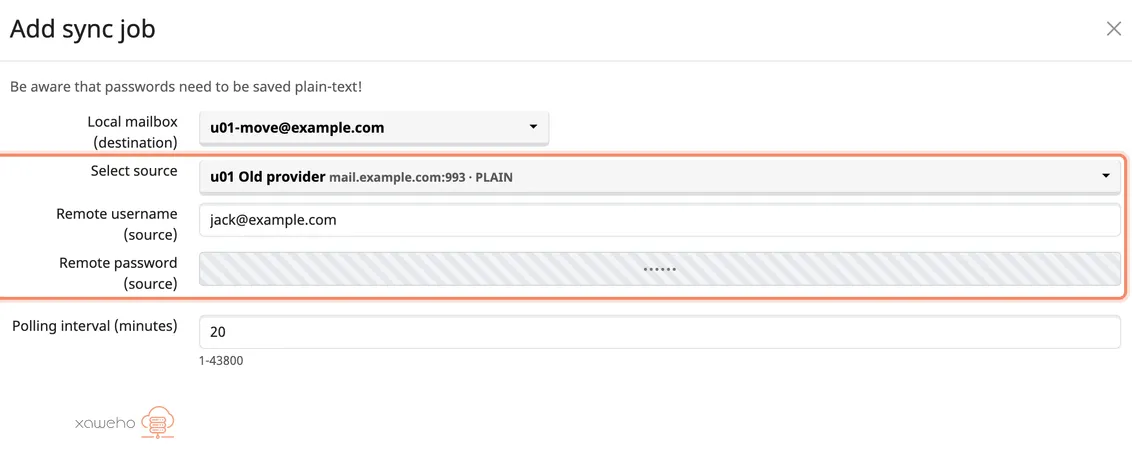
At the top, Mailcow warns: “Be aware that passwords need to be saved plain-text!” The password for the old server sits unencrypted in Mailcow until you delete the job. That’s why you clean up after the move (step 4).
-
The fields at the top:
Field What goes in Local mailbox (destination) the mailbox on our side Select source the source from step 1 Remote username (source) your login on the old server Remote password (source) the password there, or the app password if the provider requires one Polling interval (minutes) how often the job repeats: 20 by default, 1 to 43800 allowed
-
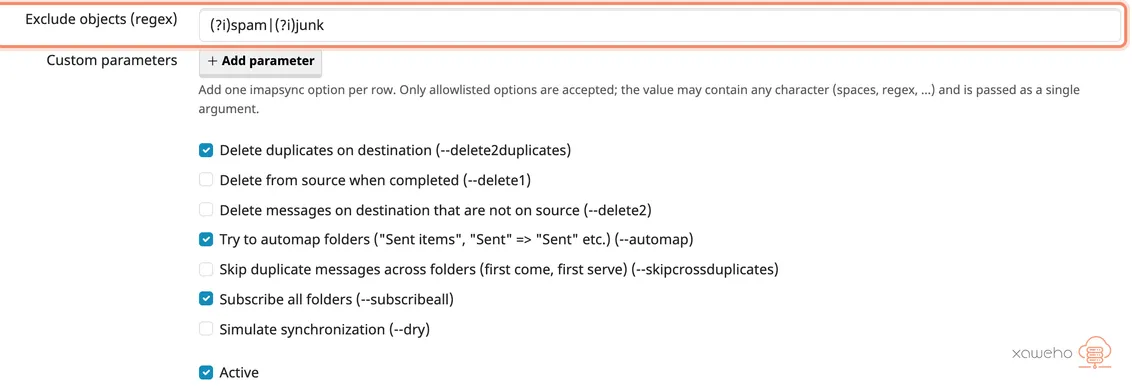
Further down are the options. We recommend leaving the defaults alone: they copy everything except spam, delete nothing on the old server, and only remove duplicates in the new mailbox.
Field or checkbox Default What it does Sync into subfolder on destination (empty = do not use subfolder) empty with an entry, the mail lands in that subfolder Maximum age of messages in days that will be polled from remote 0 0 = ignore age, copy everything Max. bandwidth in bytes/s 0 0 = unlimited Exclude objects (regex) (?i)spam|(?i)junkfolders whose name contains “spam” or “junk” (any case) are not copied Custom parameters empty extra imapsync options; Mailcow only accepts options from an allowlist Delete duplicates on destination (—delete2duplicates) on removes duplicate messages in the new mailbox Delete from source when completed (—delete1) off deletes what was copied on the old server Delete messages on destination that are not on source (—delete2) off careful, see pitfalls Try to automap folders (—automap) on e.g. “Sent items” at the old provider → “Sent” with us Skip duplicate messages across folders (—skipcrossduplicates) off Subscribe all folders (—subscribeall) on the copied folders are subscribed in the new mailbox Simulate synchronization (—dry) off test run, copies nothing Active on
- Click Add. For every further mailbox, repeat step 2 and pick the same source.
Step 3: check the run and read the log
The new job starts by itself, you don’t need to trigger anything. Jobs that have never run go ahead of jobs that already ran. Only a Priority the admin sets on a job comes first. By default, Mailcow runs one job at a time, so several mailboxes are handled one after another.
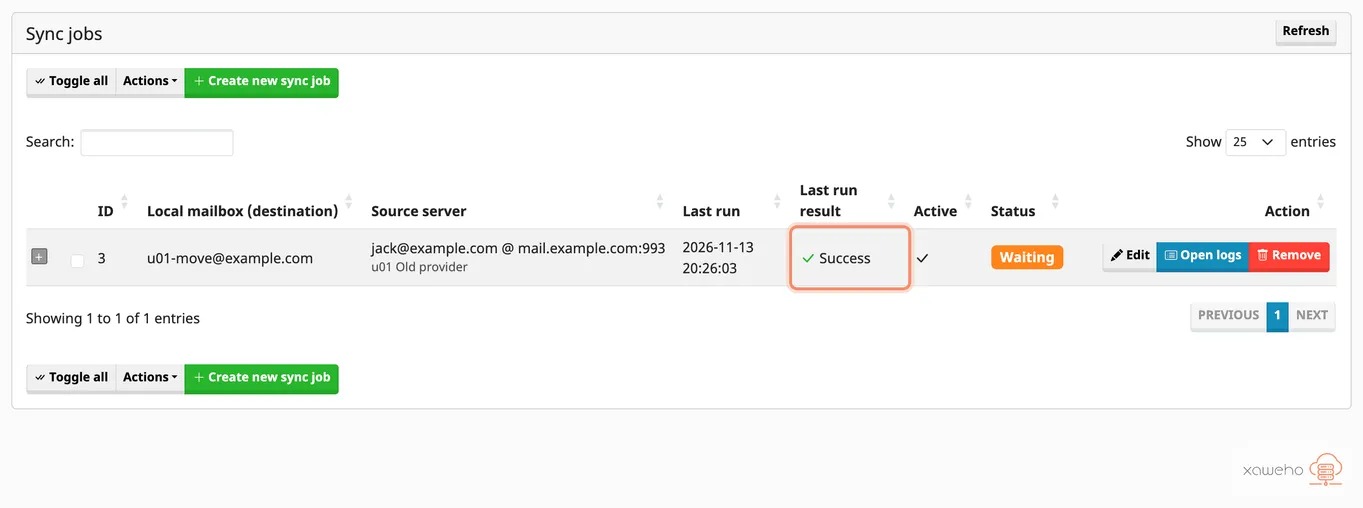
The Sync jobs table then shows:
- Last run: date and time of the last run.
- Last run result: “Success” or an error, for example “Wrong username or password”, “Can’t connect to remote server”, “Problem with encrypted connection” or “Target mailbox is over quota”.
- Status: “Waiting” means the job is waiting for its next run. “Inactive” means it’s switched off.
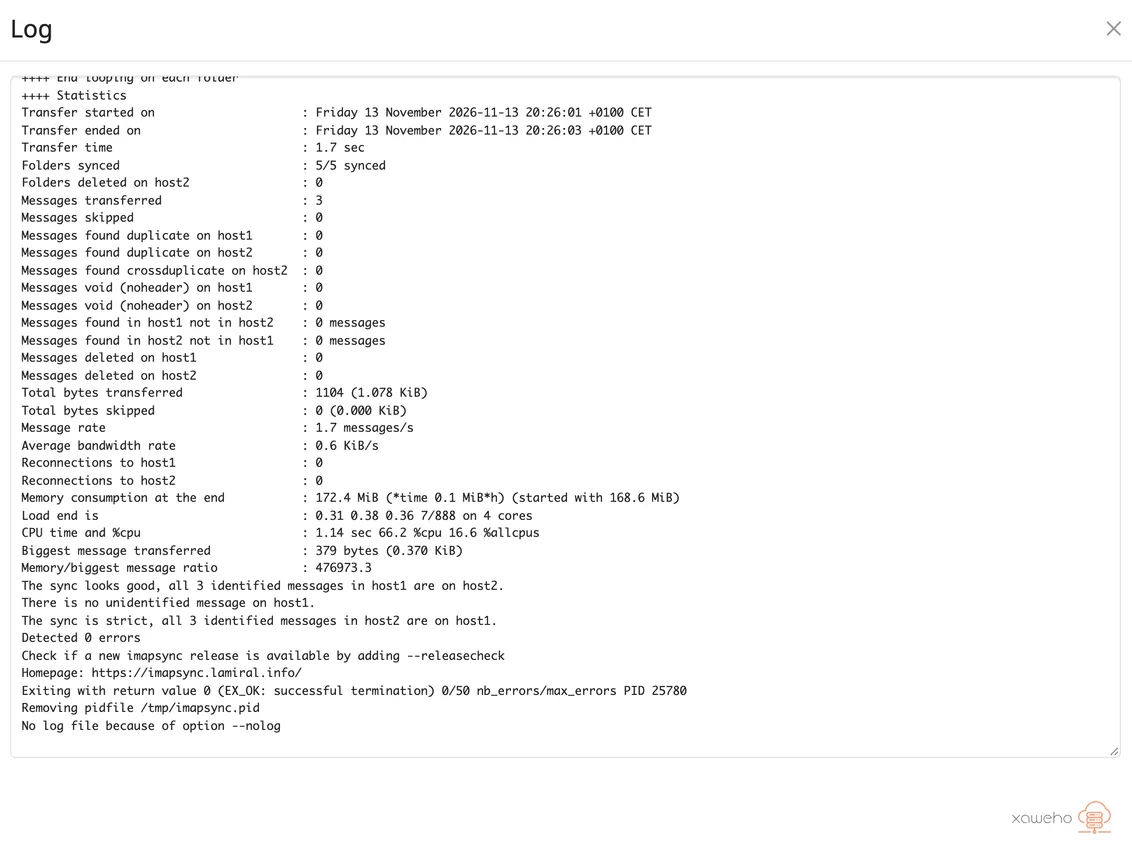
What exactly happened is shown by Open logs in the job’s row. The Log window holds the imapsync output of the last run. The part that matters is the end, from ++++ Statistics on:
Messages transferred: how many messages this run copied.Messages skipped: how many it skipped. On the second run on our test server, those were exactly the 3 messages already in the destination.Detected 0 errorsandExiting with return value 0 (EX_OK: successful termination): the run went through without errors.
Further up, the log shows which folders were excluded: Excluding folders matching pattern (?i)spam|(?i)junk.
Step 4: switch over and clean up
- Let it keep running: the job repeats every polling interval until you switch it off. If mail still arrives at the old provider, the next run picks it up.
- Switch the MX: which DNS records your domain needs with us is in Mailcow DNS records. Let the job keep running after the switch, so mail that still landed at the old provider comes across. In the Mail Server migration package, this final sync after the MX switch is included.
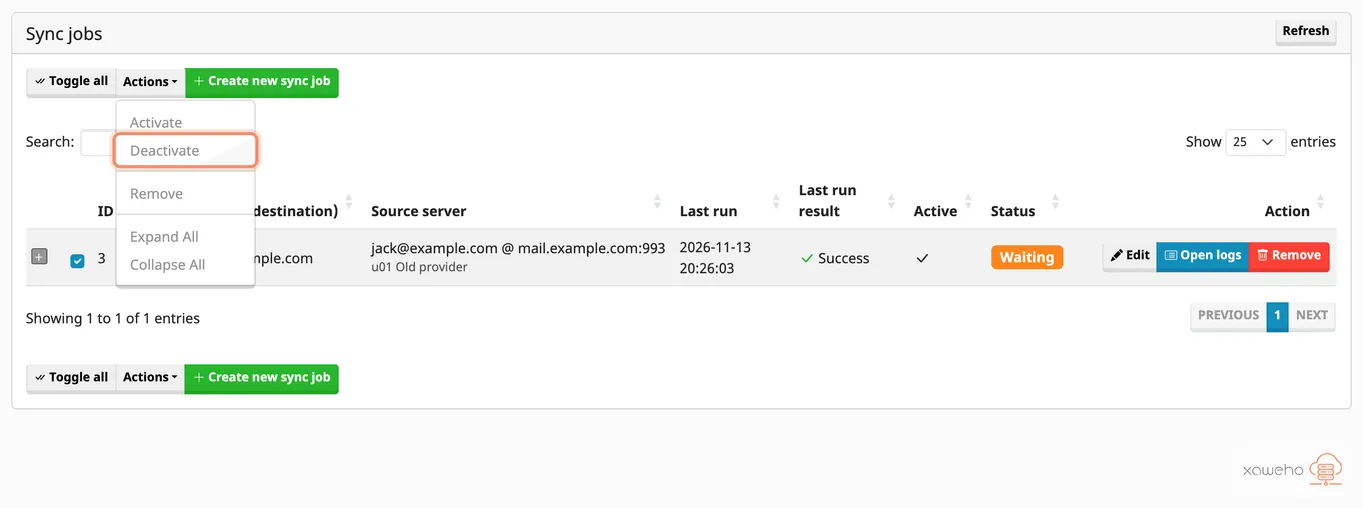
- Switch it off: tick the job and choose Actions ▾ → Deactivate. The job stops, status “Inactive”. If you don’t need it anymore, use Remove: that deletes the job along with the stored password.
- Delete the source: last, in the Sync sources card via Remove. As long as a job uses the source, Mailcow refuses. If you deactivate the source instead, all of its jobs pause at once.
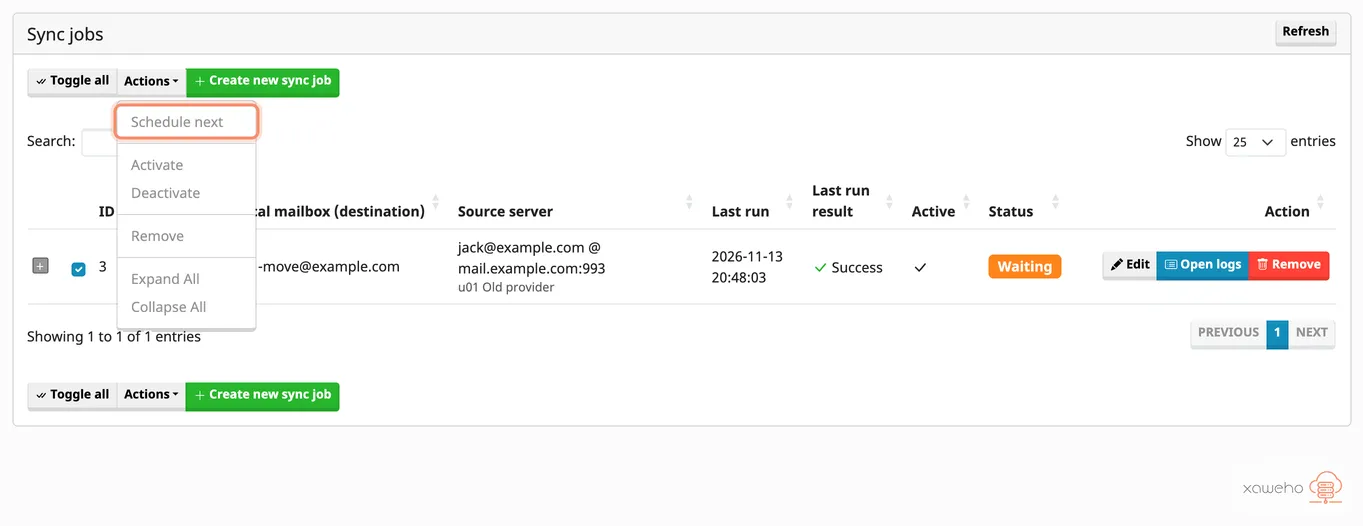
With the Mail Server (admin): as admin you also get Actions ▾ → Schedule next. It moves the ticked jobs to the front of the queue, for example for the final sync right after the switch.
Common pitfalls
- “Wrong username or password”: first check at the old provider whether IMAP is enabled and whether it requires an app password for IMAP. Then change the password in the job via Edit.
- The spam folder is missing: that’s on purpose. Exclude objects (regex) leaves out anything with “spam” or “junk” in the folder name by default. Whatever you want to keep from it, move it to another folder at the old provider first.
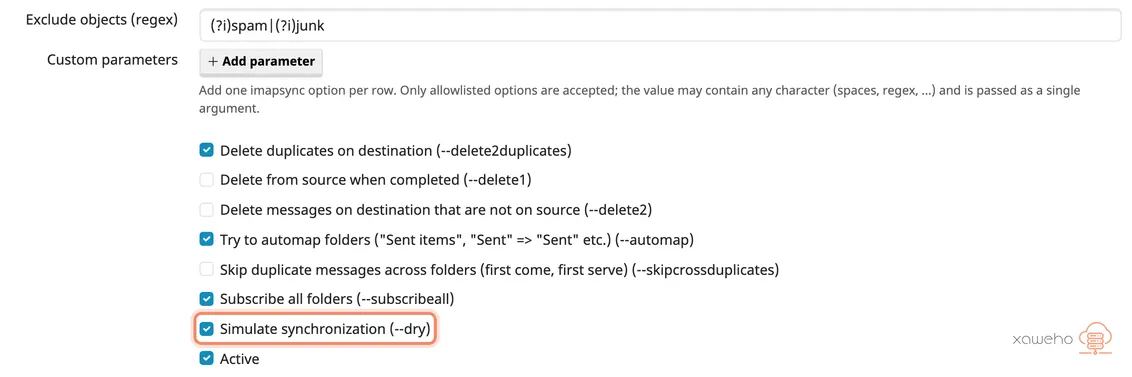
- A user’s job copies nothing: in the dialog a user opens themselves, Simulate synchronization (—dry) is ticked by default. That’s a test run. For the real move, untick it. In the domain admin and admin view, the box is unticked by default.
- “Delete messages on destination that are not on source (—delete2)”: going by its label, this option deletes everything in the new mailbox that isn’t on the old server. After the switch, that includes the new mail that only arrives with us. Leave it off.
- “Can’t connect to remote server” or “Problem with encrypted connection”: check the source’s host, port and Encryption method (993 with SSL or 143 with STARTTLS). According to the Mailcow docs, “Can’t connect to remote server” also shows up when the certificate check fails or the source points to Mailcow itself (
localhost,dovecot). If the old server has a self-signed or expired certificate, turn off Verify the server certificate in the source.
Microsoft 365 and Google
Microsoft 365 only allows IMAP with OAuth2; Microsoft has switched off password logins for Exchange Online. That’s why domain admins and admins get the presets Microsoft 365 (Client credentials), Microsoft 365 (User login) and Google (User login) with the authentication XOAUTH2 (OAuth2). What you prepare on the Microsoft or Google side is covered in separate guides: from Microsoft 365 to Mailcow and from Google Workspace to Mailcow.
Moving with our help
You don’t have to do the move yourself. Either you do it or we do. If you give us access, we take care of everything. We use the same Mailcow sync jobs and, if you like, keep them running for another week after the switch. What it costs is on the Mailhosting and Mail Server pages. To get started, open a ticket.
Frequently asked questions
Does anything get deleted at the old provider? Not by default. The Delete from source when completed (—delete1) checkbox is off. If you tick it, the job deletes there whatever it copied.
Do I get duplicates if the job runs several times? No. imapsync only copies what’s missing in the destination, and Delete duplicates on destination is on by default. On our test server, the second run transferred 0 messages and skipped 3.
Why don’t I see a “Sync jobs” tab? As a user, you lack the “Sync jobs” permission, which is off by default. Your domain admin sets up the jobs or enables the permission for you — on the Mail Server, the admin can too.
Can I copy mail between two mailboxes on the same server?
Yes. As the source host, enter the public server name, not localhost or dovecot. That’s what the Mailcow docs say, and it’s how we made the screenshots for this guide.
Do calendars and contacts come along? No, sync jobs only copy mail. SOGo imports calendars as ICS files and contacts as vCard or LDIF: calendar, contacts.
What’s next
Next steps
Migrating from Microsoft 365 to Mailcow
Moving mails, calendars and contacts from a Microsoft 365 account to Mailcow — in the background, without data loss, with minimal disruption for end users.
Migrating from Google Workspace to Mailcow
Moving mails, calendars and contacts from Google Workspace to Mailcow — with IMAP migration, Google Takeout for calendars and contacts.
Migrating from a classic IMAP provider (1&1, Strato, IONOS, AllInkl, etc.)
You're switching from a classic mail host to Mailcow. How the migration works — self-service or handled by us.
From Exchange to Mailcow: how the migration works
Mailboxes via IMAP sync, calendars and contacts via export, DNS in the right order — migrating from Exchange 2016/2019 to Mailcow step by step, with the pitfalls to watch for.
Sources and last updated
- mailcow docs: sync jobs and migration (sync sources, OAuth2, status, logs) · as of
- mailcow-dockerized, release 2026-11: sync sources, OAuth2, imapsync 2.314 · as of
- imapsync: project page, incremental transfer without duplicates · as of
- Microsoft Learn: deprecation of Basic authentication in Exchange Online · as of
- Tested with
- Mailcow 2026-11 · SOGo 5.12.13
- Last updated