
As admin of your Mail Server, you see the complete Mailcow interface: every domain, every mailbox and the settings of the whole server. Behind three menus sit a lot of tabs. This article is the map: what lives where, one sentence each, and which buttons act on the whole server instead of a single domain.
How to log in is covered in Mailcow login: where users, domain admins and admins sign in. The screenshots come from our test server in the standard Mailcow look, with mail.example.com standing in for the server name. The admin username and values that only concern our test server are covered up.
After logging in
After logging in at /admin you land on System → Information. The header is the same on every page, from left to right:
- Moon icon with switch: dark mode on or off.
- Flag: interface language, for example “English” or “Deutsch (German)”.
- System ▾: Information and Configuration, the status and settings of the whole server. Only the admin has this menu.
- E-Mail ▾: Configuration (domains, mailboxes, aliases and more), Quarantine, Queue Manager and Restart SOGo.
- Apps ▾: Webmail.
- Your username with the power icon: one click logs you out right away. There’s no user menu.
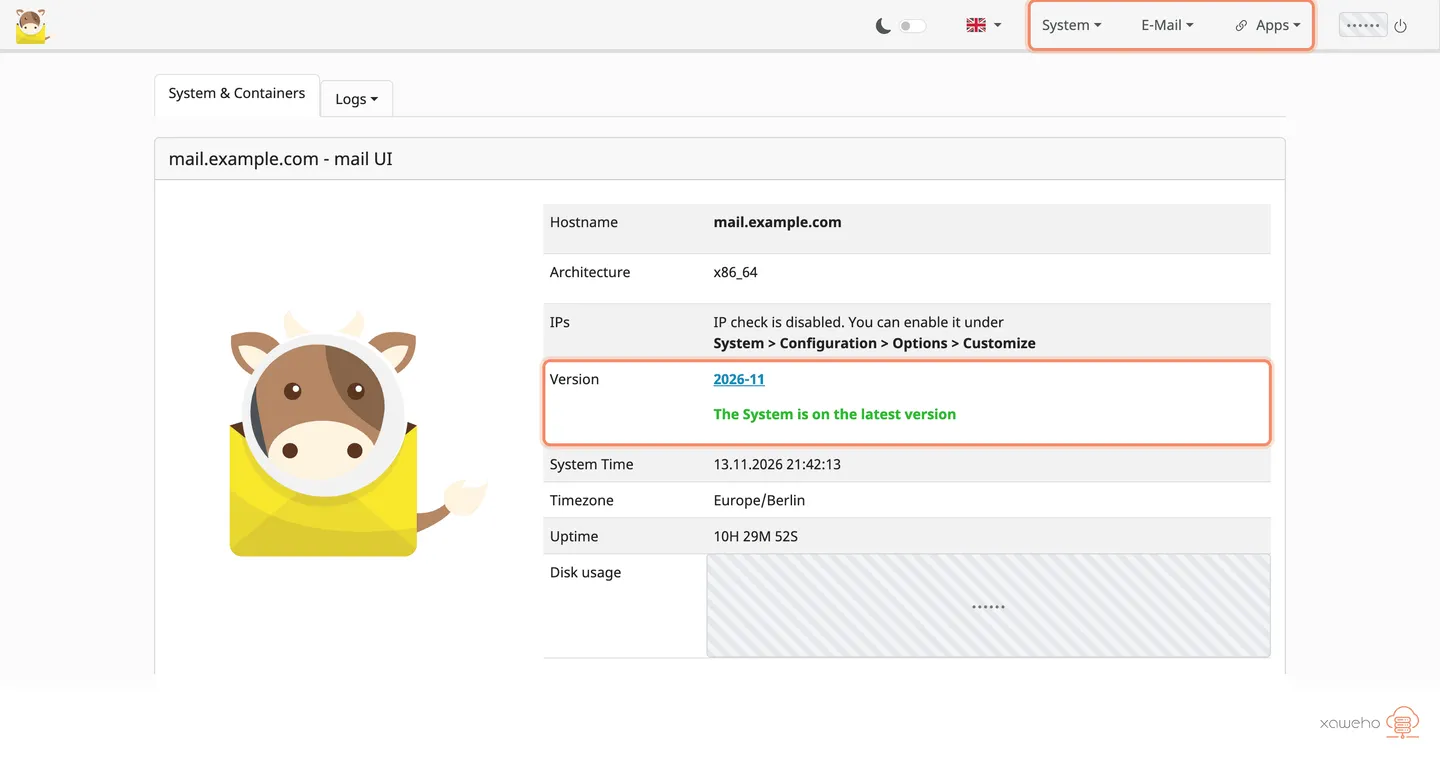
At the bottom of every page it says “Version: 2026-11”. The link leads to the release notes for that version on GitHub.
System → Information
Two tabs: System & Containers and Logs ▾.
System & Containers shows the state of the server:
- System card: hostname, version, system time, uptime, disk usage, and below that CPU and memory. The Version row shows which Mailcow version is running and, underneath, whether it’s current (in the screenshot: “The System is on the latest version”).
- GUID & License: the instance ID for a license with the Mailcow project. The note there says a license is not required.
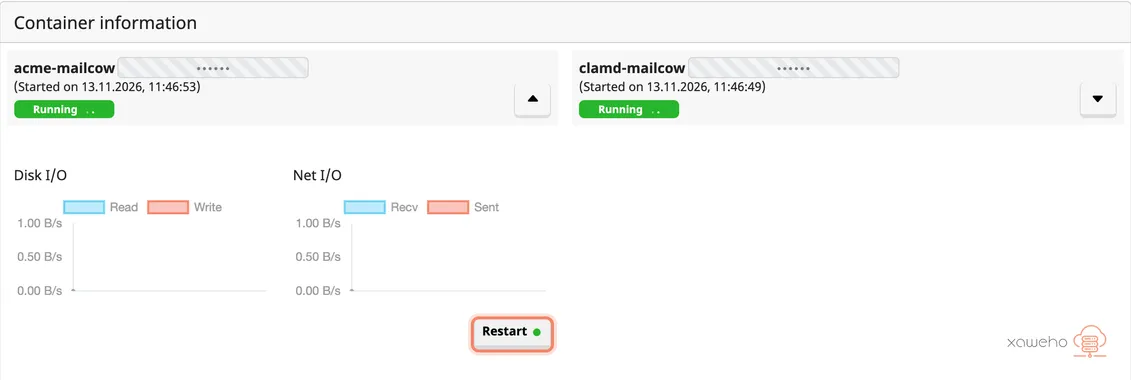
- Container information: Mailcow is made of containers, one per service (Postfix, Dovecot, SOGo, Rspamd and more), each with the status “Running”. The arrow on the right expands a container: Disk I/O, Net I/O and the Restart button.
Logs ▾ collects the logs of the individual services in three groups:
- In-memory logs: Postfix, Dovecot, SOGo, Netfilter, Autodiscover, Watchdog, ACME, API, Ratelimits, Crontasks
- External logs: Rspamd
- Static logs: Mailcow UI, SASL
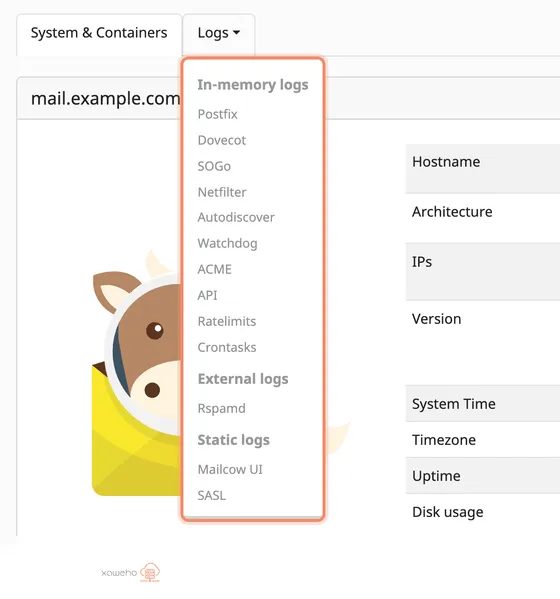
Domain admins don’t see these logs.
System → Configuration
Five tabs: Access ▾, Options ▾, Routing, System mails and Global filter maps ▾. The page opens on Access → Administrators.
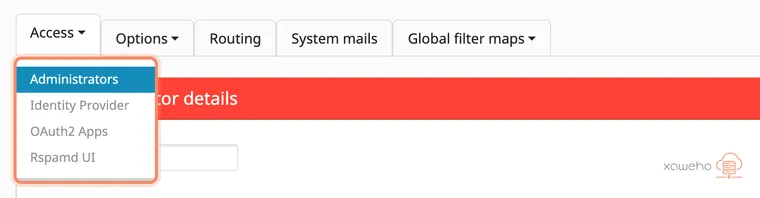
| Access ▾ | What’s there |
|---|---|
| Administrators | Three cards, one below the other: Edit administrator details (the list of admins), Domain administrators (create, edit, and use Login to see Mailcow through their eyes) and API (API keys). |
| Identity Provider | Login through an external provider: Keycloak, Generic-OIDC or LDAP. |
| OAuth2 Apps | Other applications sign their users in with their Mailcow mailbox. The note there says this only works for mailbox users. |
| Rspamd UI | Password for the web interface of the Rspamd spam filter. |
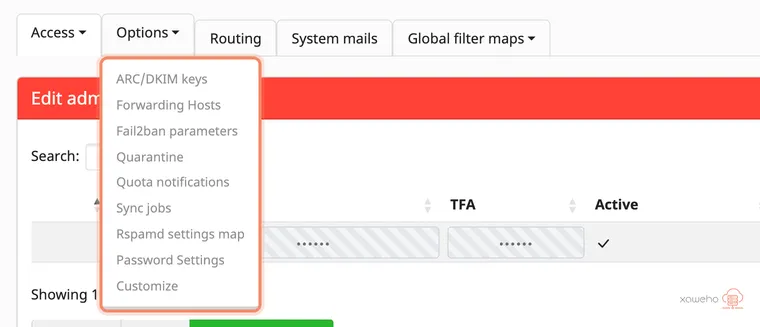
| Options ▾ | What’s there |
|---|---|
| ARC/DKIM keys | The DKIM keys of all domains: view, generate, import. |
| Forwarding Hosts | Servers that forward mail to your server. Mailcow accepts their mail without DNSBL checks or greylisting and never rejects spam from them. |
| Fail2ban parameters | After how many failed logins Mailcow bans, for how long, and which networks are never or always banned. |
| Quarantine | Whether Mailcow holds back spam, how much and for how long, and who gets notified. |
| Quota notifications | Sender, subject and text of the email a mailbox gets at 80 and at 95 percent usage. |
| Sync jobs | How many sync jobs run at the same time and with how much bandwidth. |
| Rspamd settings map | Your own rules for the Rspamd spam filter. |
| Password Settings | Password policy (length, character types) and the template for password recovery emails. |
| Customize | Theme, logo, login page, app links and interface texts. |
The other three tabs:
- Routing: Sender-dependent transports and Transport Maps make mail from certain domains, or to certain destinations, leave through another server.
- System mails: a broadcast email to every mailbox on the server or to a selection. The Send button only becomes active after Activate send button.
- Global filter maps ▾ → Regex maps: server-wide allow and deny lists for the spam filter, written as regular expressions. You can only edit them once I will be careful! is ticked.
E-Mail → Configuration
This is where you manage what affects your users: domains, mailboxes, aliases. The page opens on the Domains tab.
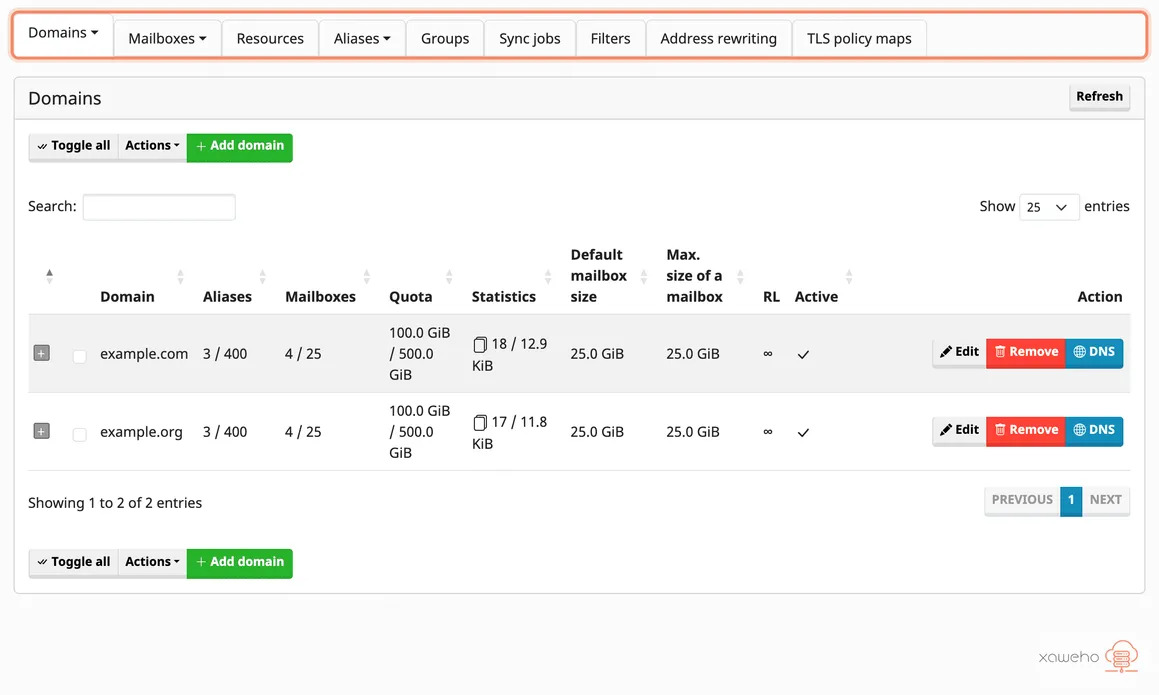
| Tab | What’s there |
|---|---|
| Domains ▾ | Domains: create, edit, check DNS records (the DNS button in each row). Templates: defaults for new domains. |
| Mailboxes ▾ | Mailboxes: create, change, lock mailboxes, and use Login to switch into a mailbox’s settings. Templates: defaults for new mailboxes. |
| Resources | Rooms, equipment and other things that can be booked in the calendar. |
| Aliases ▾ | Aliases: extra addresses that forward to one or more destination addresses. Domain aliases: a whole domain as a second name for another one. |
| Groups | Distribution lists with a group address, shared access to mailboxes, calendars and address books. |
| Sync jobs | Sync sources and sync jobs to pull mailboxes over from another server. |
| Filters | Sieve filters for individual mailboxes, as prefilter or postfilter. |
| Address rewriting | BCC maps (a copy to another address) and Recipient maps. |
| TLS policy maps | Outgoing TLS policies: set how mail to specific destinations gets encrypted. |
Your domain admins see the same page, but only for their domains and with fewer options, for example without the templates.
Guides for these: Add a domain to Mailcow and set limits, Create, edit and lock mailboxes, Setting up aliases and a catchall, Mailcow DNS records: the checklist, Move mailboxes with Mailcow sync sources and sync jobs.
E-Mail → Quarantine
The quarantine holds on to mail the spam filter rejected or filed into the Junk folder as a copy. For an entry you get Deliver to inbox, Learn as spam and delete and Remove.
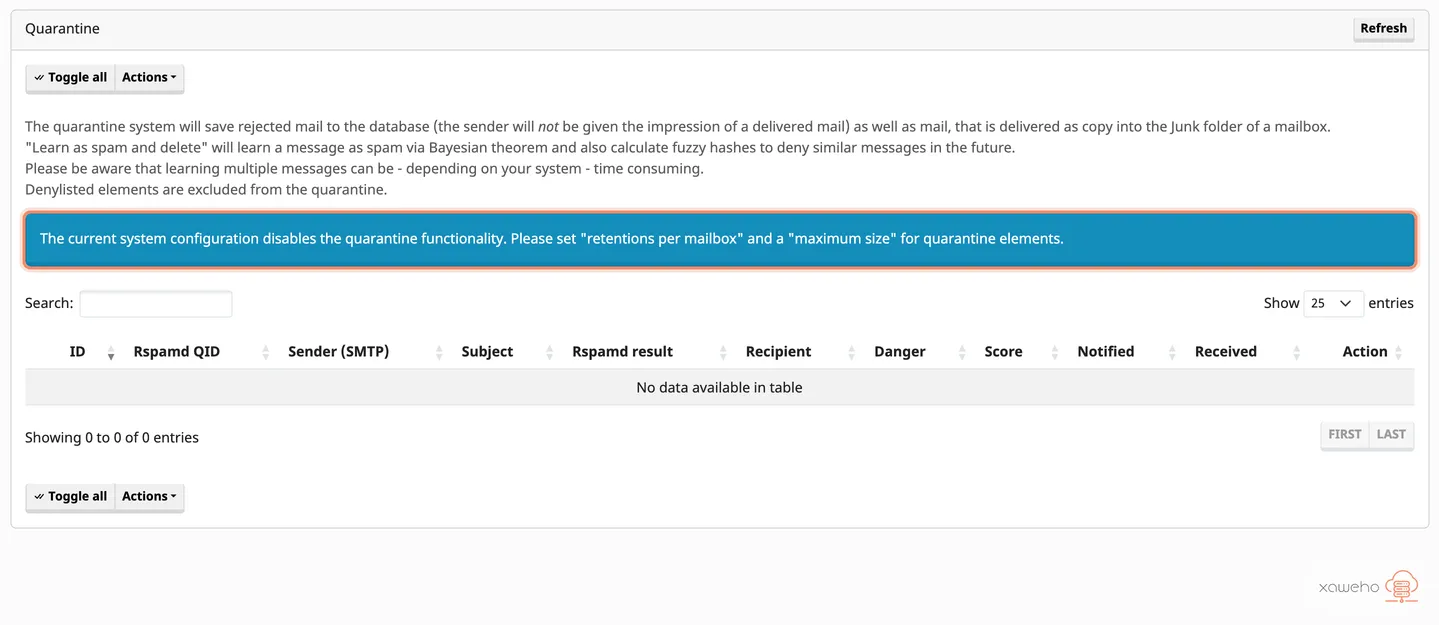
If you see the blue note, the quarantine is off. You switch it on under System → Configuration → Options → Quarantine: only once Retentions per mailbox and Maximum size in MiB are above 0 does Mailcow hold anything back.
E-Mail → Queue Manager
The Queue Manager shows the mail queue: messages your server hasn’t been able to deliver yet. According to the note on the page, Mailcow deletes a message that’s stuck in the queue for a long time automatically. For selected messages, Actions ▾ offers Deliver (a new delivery attempt), Hold, Unhold and Remove.
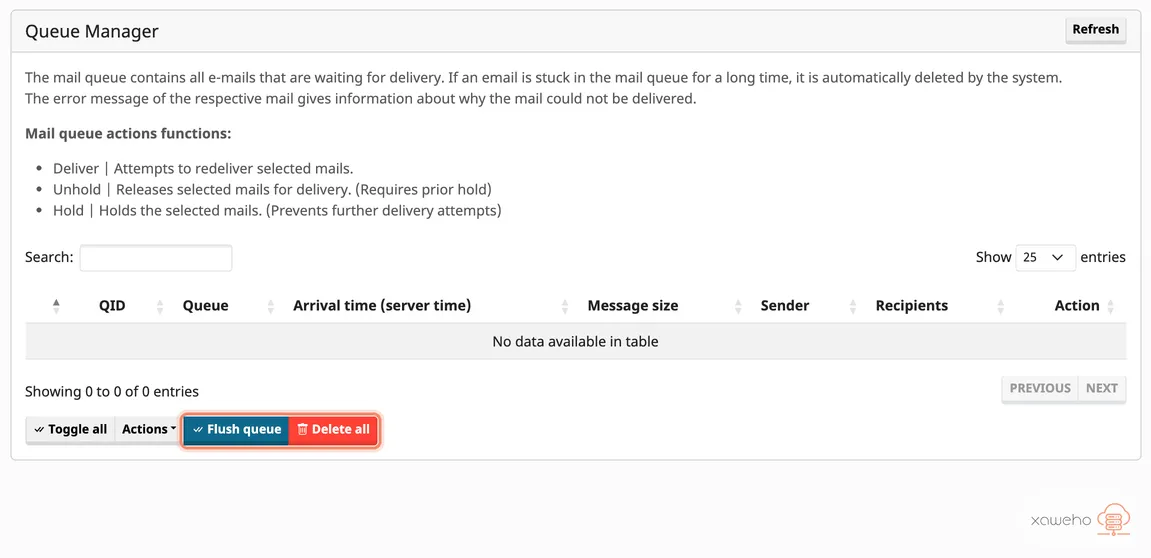
The two buttons at the bottom, Flush queue and Delete all, act on the entire queue. More on that below under “Careful”.
Restart SOGo and webmail
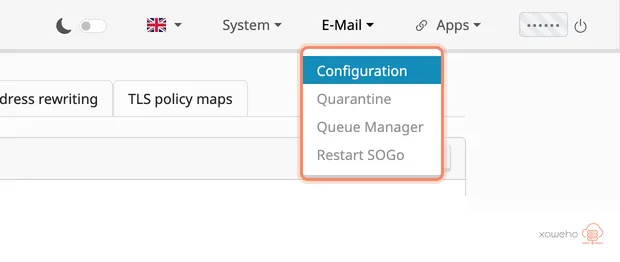
- E-Mail ▾ → Restart SOGo opens the Restart container dialog for the webmail container. Nothing restarts until you click Restart now.
- Apps ▾ → Webmail leads to SOGo webmail. As admin you don’t have a mailbox there: with the admin login alone you land back on System → Information. To open your mailbox, use the server’s start page with your email address and mailbox password.
What works the same everywhere
- Tables: Refresh loads the current state, Toggle all selects or deselects all rows, Actions ▾ acts on the selected rows, Search: filters. Hidden columns open via the + at the start of a row.
- Edit opens a page of its own headed “Edit object”. ← Previous page takes you back, Save changes saves.
- Remove asks first: in the Confirm deletion dialog, only Delete now deletes.
Careful: buttons that hit the whole server
Whatever you change on a domain or mailbox under E-Mail → Configuration affects exactly that domain or mailbox. The following spots act on the whole server, meaning every domain and every user:
- Restarting containers (System → Information → Container information → arrow → Restart) and Restart SOGo: each service runs in a single container for the whole server. Mailcow asks first in the Restart container dialog and warns that the restart may take a while.
- Delete all: deletes every message in the queue (tooltip
postsuper -d ALL), without asking. Those messages won’t be delivered. To remove individual messages, use Actions ▾ → Remove, which asks first. - Flush queue: triggers an immediate delivery attempt for every queued message (
postqueue -f). The Postfix manual warns that frequently flushing undeliverable mail slows down delivery of all other mail. - Fail2ban parameters: Mailcow counts failed logins for IMAP, POP3, SMTP and Sieve, in the Mailcow interface and in SOGo, and then bans the network they come from. That includes your own login. IPv4 subnet size to apply ban on is 32 by default, meaning exactly one address; smaller values ban larger networks. With Manage Fail2Ban externally, Mailcow no longer blocks anything itself, according to the note on the page.
- Global filter maps: the note there says Rspamd can break if it can’t read an entry. That is why you have to tick I will be careful! first.
- Quarantine, Password Settings and System mails apply to every mailbox. A system mail without a selection goes to all mailboxes.
Not sure? Ask first by opening a ticket. Questions and outages are covered by ticket support.
With the Mail Server: the admin interface of your instance lives at
https://<server-name>/admin. The server name follows the patternmx-<customer>.xaweho-host.de. Your exact name and the login details are in your activation email and in the customer center. There’s no SSH or root access: the operating system, the Mailcow version, certificates, backups and monitoring stay with us. New instances currently ship with Mailcow 2026-11, the standard Mailcow templates and DKIM keys with selector “dkim” and 2048 bits. The quarantine is off on delivery.You create domains, mailboxes, aliases, quarantine rules and filters yourself in this interface. If you want us to set something for you: anything that’s a plain setting and can be configured update-safe out of the box is free. Special requests, recurring tasks and custom configurations are billed as hands-on work; the price is on the product page. What only works outside the interface is covered in What you set without root, and what goes via ticket.
Frequently asked questions
Where are the logs? Under System → Information → Logs ▾. Domain admins don’t see them.
I don’t see a “System” menu. What’s going on?
You’re logged in as a domain admin, not as admin. The System menu only shows up after logging in at /admin. The three login pages are explained in Mailcow login: where users, domain admins and admins sign in.
Do I have to update Mailcow myself? No. We install the updates. Which version is running is shown under System → Information in the Version row and at the bottom of every page.
The quarantine shows a blue note and stays empty. Why? Because it’s off. Under System → Configuration → Options → Quarantine, Retentions per mailbox and Maximum size in MiB both need to be above 0; only then does Mailcow hold mail back.
How do I switch the interface to German? Via the flag at the top right, entry “Deutsch (German)”.
What’s next
Next steps
Mailcow login: where users, domain admins and admins sign in
Mailcow has three login pages: one for users, one for domain admins, one for admins. Which address and username you need, and where you land.
What you set without root, and what goes via ticket
Mail Server without root: what you configure yourself in the Mailcow admin interface, what only works via files on the server, and when a ticket is free.
Add a domain to Mailcow and set limits
Add a domain in Mailcow, cap mailboxes, aliases and storage, create the DKIM key, then edit or delete it later: the workflow for admins of your Mail Server.
Create, edit and lock mailboxes
Create a mailbox, assign storage, set a new password, block logins or delete it: how you manage the mailboxes of your domain as domain admin.
Sources and last updated
- mailcow docs: Netfilter (Fail2ban), what gets counted and banned · as of
- mailcow-dockerized 2026-11: Queue Manager template ("Flush queue" and "Delete all" buttons)
- Postfix manual: postsuper(1), option -d ALL
- Postfix manual: postqueue(1), option -f
- Tested with
- Mailcow 2026-11 · SOGo 5.12.13
- Last updated