
Of all the parts of Microsoft 365, files are the quickest to move: no DNS, no warm-up, no Outlook profiles. Copying is easy to explain. The effort goes into two other things. First, everything in OneDrive that looks like a file but isn’t one: OneNote notebooks, Loop pages, encrypted documents. Second, everything that isn’t stored in the file at all: shares, versions, SharePoint columns.
This article covers which route fits which amount of data and where the traps are. For the overview of what in Microsoft 365 can be replaced at all, see Replacing Microsoft 365; for moving your mail, see Migrating from Microsoft 365 to Mailcow.
Start with an inventory
Before you copy anything, write down where your files in Microsoft 365 actually live. There are more places than most people think:
- Everyone’s OneDrive. If OneDrive folder backup is on, Desktop, Documents and Pictures live there too.
- Personal Vault. Only exists in a personal OneDrive. Unlock it in the browser or on Windows and take its contents out deliberately before you copy. Microsoft doesn’t say whether a locked vault comes along when you download.
- SharePoint and Teams. Every standard channel of a team is a folder in the document library of the team site. Private and shared channels each have their own site, and only channel members can see it. Team owners and admins don’t see it automatically.
- Files from Teams chats. These sit in the OneDrive of the person who sent them, in the folder “Microsoft Teams Chat Files”. The files of a group chat are therefore spread across several OneDrives.
- Meeting recordings. These go to the OneDrive of the person who organized the meeting, folder “Recordings”, or to the channel folder for channel meetings. Microsoft puts an hour of recording at roughly 400 MB. Recordings are often what decides whether your storage is enough.
- Special formats. OneNote, Loop, Whiteboard, Forms and files with a sensitivity label each need their own route, see “Special cases” below.
For each area, note who owns it, how big it is and who has access. Then decide where it goes in Nextcloud:
| In Microsoft 365 | In Nextcloud |
|---|---|
| A person’s OneDrive | Files in that person’s Nextcloud account |
| SharePoint library, Teams channel | Group folder for the matching group (“Team Folders” app, see below) |
| Different permissions on subfolders | Advanced permissions in the group folder (also “Team Folders” app) |
| Share links for outsiders | new links with password and expiration date |
| Version history | starts over in Nextcloud |
| OneNote, Loop, Whiteboard | Export, see “Special cases” |
Group folders belong to a group instead of a person. Everyone in the group sees them automatically, which makes them the closest thing to a SharePoint library. In the Nextcloud app store the app is currently called “Team Folders”, and that’s also its name in the admin settings.
On Nextcloud Hosting it is not installed out of the box, so the group folders and advanced permissions from the table above only exist once you install the app. As admin you get it from the app store: avatar → Apps → Discover → type “Team Folders” into the search field → Download and enable → confirm with your password. Searching for “Group folders” doesn’t find it. Its name may change again with an app update (“Group folders” is planned). More in Creating users and groups.
With advanced permissions you set per subfolder who may read, write, create, delete and share. That costs some performance, so only switch it on where you need it.
Which route fits?
| Your situation | Route |
|---|---|
| A few gigabytes, a few thousand files at most | 1: download and upload in the browser |
| The usual case: a handful of people, up to a few hundred gigabytes | 2: the OneDrive app pulls everything onto your computer, the Nextcloud client uploads it |
| Lots of files, SharePoint libraries, a computer that can run overnight | 3: rclone copies straight from cloud to cloud |
| Several terabytes | 4: send us a drive |
Route 1: in the browser
- In OneDrive on the web, select the folders and choose Download. Multiple files or folders arrive as a ZIP file.
- Extract the ZIP into a short path, for example
C:\Move\. By default Windows only handles paths up to 260 characters; OneDrive allows 400. - In Nextcloud, open the Files app and drag the folders into the browser window. Or use + New → Upload folders (section “Upload from device”) at the top and pick the unzipped folder. Nextcloud uploads folders including subfolders, and splits large files into chunks automatically.
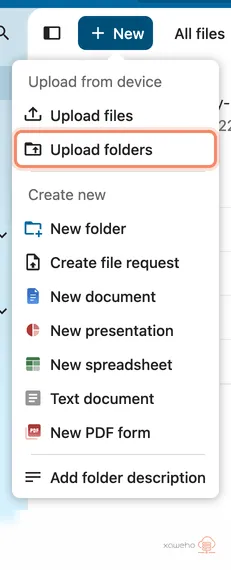
The limits: the browser download can’t handle more than 10,000 files. OneNote notebooks don’t come along this way at all, and neither do some encrypted files. And the original modification date of your files can get lost on the way. For anything above a few thousand files, use route 2.
Route 2: OneDrive app plus Nextcloud client
This is the route we recommend to most people. The OneDrive app pulls everything onto your computer, the Nextcloud desktop client uploads it. The modification date of your files survives the trip.
1. Check your space. For a while you need twice as much free disk space as your data takes up: once in the OneDrive folder, once in the Nextcloud folder. If that doesn’t fit, move in stages, folder by folder. In Nextcloud, your plan has to hold the data plus some room for versions.
2. Download all of OneDrive. Many files only exist on your computer as placeholders, marked with a cloud icon. They have to come down completely first:
- Windows: OneDrive settings → Sync and back up → Advanced settings → Download all files. In older versions, uncheck “Save space and download files as you use them” instead. For single folders: right-click → Always keep on this device.
- Mac: OneDrive settings → Download all OneDrive files now.
Wait until every file shows the solid green circle with the white check mark. Microsoft labels these menu items slightly differently depending on the version.
3. Add SharePoint and Teams libraries. Open the library in the browser and click Sync. On Windows it shows up in a folder named after your organization, on a Mac in the Finder sidebar. After that, download it completely, as in step 2. A lock icon means the library syncs read-only, which is enough for the move. Have only one person pull each library, otherwise it ends up in Nextcloud twice.
4. Set up the Nextcloud client. Install and connect it as described in Desktop client. On a Mac, the client sets up new accounts through the macOS File Provider extension. You then find the Nextcloud folder in the Finder sidebar, not under ~/Nextcloud. Group folders (if you’ve installed the “Team Folders” app) show up automatically in the Nextcloud folder of every member.
5. Copy, don’t move. Copy the contents of the OneDrive folder into the Nextcloud folder: your personal OneDrive into your own Nextcloud account, SharePoint libraries into the matching group folder. Moving is dangerous here. Whatever you move out of the OneDrive folder, OneDrive also deletes in the cloud.
6. Let it upload and check. The client uploads in the background. Files with names Nextcloud rejects are skipped and listed in the client’s activity view; clicking one opens a rename dialog. Once nothing is pending, compare the file count and size of the source and target folders: right-click → Properties (Windows) or Get Info (Mac).
Route 3: rclone from cloud to cloud
rclone is a free command-line program that copies between cloud storage services. The data passes through your computer but doesn’t land on its disk. That pays off with lots of files, with SharePoint libraries and wherever local space is short. Prerequisite: the terminal doesn’t scare you.
1. Install rclone, version 1.76 or newer. On Windows, run winget install Rclone.Rclone in the terminal; on a Mac with Homebrew, brew install rclone; otherwise get the matching package from rclone.org/downloads. Check with rclone version. Starting April 1, 2027, downloads from OneDrive for Business and SharePoint only work with version 1.76 or newer. On top of that, 1.76 retries a failed chunk individually when uploading large files to Nextcloud instead of aborting the whole upload.
2. Connect OneDrive. rclone config → n for a new remote (rclone’s name for a saved connection) → name onedrive → type onedrive. Leave client_id and client_secret empty, accept the defaults for region and tenant with Enter, skip the advanced settings with n, confirm the browser login with y. After the login, rclone asks what you want to connect: onedrive for your own OneDrive, url for a SharePoint or Teams site. With url you enter the site’s address and pick the library, usually “Documents” (“Dokumente” on a German-language site). Finally, save the remote with y and leave rclone config with q.
You create a separate remote with its own name for each SharePoint library, for example sp-sales. In the commands below you then write sp-sales: instead of onedrive:, for example rclone copy sp-sales: nextcloud:Sales ….
With work accounts, Microsoft may ask for an administrator’s consent at login. By default, rclone requests read and write access to all files you can access, plus read access to SharePoint sites. In many organizations, regular users aren’t allowed to grant that themselves. Your organization’s Microsoft 365 admin grants the consent once.
3. Create an app password in Nextcloud. rclone logs in with an app password, not with your account password; with two-factor authentication on, there’s no other way. Avatar → Settings (as admin: Personal settings) → Security, under “Devices & sessions” enter an app name such as “rclone” in the “App name” field → Create new app password (the button only becomes clickable once a name is in) → confirm with your account password in the “Authentication required” dialog. The “New app password” dialog shows the fields “Login” (that’s your username for rclone) and “Password”, and only this one time. So copy them right away. Step by step with screenshots: Understanding and managing app passwords.
4. Connect Nextcloud. Copy the address exactly from the Files app: bottom left, Files settings → section “WebDAV” → “WebDAV URL”, with the copy icon on the right.
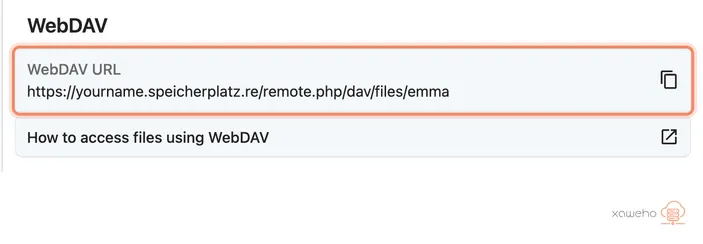
It looks like this (with your address instead of yourname.speicherplatz.re, or your own domain if you use one, and your account name at the end):
https://yourname.speicherplatz.re/remote.php/dav/files/ACCOUNTNAMEIt has to contain /dav/files/ACCOUNTNAME. rclone rejects the often-quoted address with /remote.php/webdav/ for Nextcloud.
Then rclone config → n → name nextcloud → type webdav → paste the address → vendor nextcloud → username. At the password prompt, choose y and paste the app password twice. Don’t just press Enter, or the password stays empty. Leave bearer_token empty, skip the advanced settings with n, save the remote with y and leave with q.
5. Dry run first, then the real run.
# Dry run: only shows what would happen
rclone copy onedrive: nextcloud:OneDrive-Move --dry-run --progress

# Real run with a log
rclone copy onedrive: nextcloud:OneDrive-Move --progress --create-empty-src-dirs --log-file move.log --log-level INFO
onedrive: stands for your whole OneDrive, nextcloud:OneDrive-Move for a folder in your Nextcloud that rclone creates by itself. For a group folder (“Team Folders” app), use its name as the target, for example nextcloud:Sales. --create-empty-src-dirs brings empty folders along.
6. Compare.
rclone check onedrive: nextcloud:OneDrive-Move --one-way --size-onlyOneDrive and Nextcloud share no common checksum, so rclone check only compares file sizes. That catches missing and incomplete files, nothing more.
Plus five rules:
- Always
copy, neversync.syncdeletes everything at the target that’s missing at the source. - Interrupted? Run the same command again. rclone skips what’s already there. Only a large file that was cut off halfway starts over from scratch.
- Long pauses are normal. With many requests, Microsoft throttles, and rclone then waits on its own. Microsoft throttles least at night and on weekends. If it keeps stalling, slow rclone down, for example with
--transfers 2 --checkers 4 --tpslimit 8. - Personal Vault. rclone can’t read the Personal Vault of a personal OneDrive. Get its contents out in the browser first and add
--exclude "/Personal Vault/**"to the commands from steps 5 and 6. If the folder has a different name in your account,rclone lsd onedrive:shows the exact name. - Only clean up after the final sync. In the file
rclone.conf, access tokens and the app password are only obscured, not encrypted.rclone config fileshows where it is. After the cutover date, delete it and revoke the app password in Nextcloud, see “Switching over and canceling”.
Route 4: send us a drive
With several terabytes, your internet connection is the bottleneck. At 40 Mbit/s upload it manages roughly 18 GB per hour, so 2 TB takes almost five days straight. In that case you can send us a drive and we load it directly into your Nextcloud. With Nextcloud Hosting the upload costs nothing; you only pay for return shipping. Arrange it with us first: open a ticket.
Special cases
OneNote. In OneDrive, notebooks aren’t normal files. The sync folder only holds a shortcut (.url), the browser ZIP a text file with an error message, and rclone hides them entirely. You have to export them from OneNote itself:
- OneNote for Windows (the desktop app from Microsoft 365): File → Export, then pick Notebook and the format “OneNote Package (*.onepkg)” or PDF.
- OneNote for the web, personal OneDrive only: right-click the notebook → Export notebook → Export. You get a ZIP.
- OneNote for Mac only saves single pages as PDF. With a work account and a Mac, you need a Windows computer for the full export.
- The old app “OneNote for Windows 10” can’t export. Microsoft switched it to read-only in October 2025.
The PDF makes a clean archive in Nextcloud. If you want to keep working with your notes: as of version 3.5.5, Joplin imports the ZIP from OneNote for the web and the .onepkg package (the latter only on Windows), but not PDF. Joplin syncs via Nextcloud. For simple notes, Nextcloud Notes is enough, but then you carry them over by hand.
Loop. Loop pages from the Loop app and from Teams channels live in separate storage areas, not in a normal library. Neither the OneDrive app nor rclone picks them up, and no program outside Microsoft 365 opens .loop files. The only way to keep them is as PDF: open the page, Ctrl+P (Mac: Cmd+P), save as PDF.
Whiteboard. A whiteboard is a .whiteboard file in the OneDrive of the person who created it. You can only take it along as an image: in Whiteboard, Settings → Export image.
Forms. Get the responses on the “Responses” tab via “Open in Excel” and take the Excel file along. The forms themselves can’t be exported; you rebuild them in Nextcloud Forms.
Encrypted files. Files with an encrypting sensitivity label from Microsoft Purview stay encrypted after download. Only someone who signs in with an authorized Microsoft account can open them. Nextcloud and Euro-Office can’t do that. Some of them may even be missing from the browser ZIP. So the encryption has to come off before the move. Whoever has full control of the file replaces the label with one that doesn’t encrypt. For many files at once you need your organization’s Microsoft 365 admin. Whoever set up Microsoft 365 for your organization knows whether you use such labels at all.
What gets lost on the way
- Version history. Every route only brings the current version of a file. In Nextcloud the history starts over with the upload. If you need an old version, restore it in OneDrive beforehand and save it as a separate file.
- Shares and permissions. Who may see what isn’t stored in the files. Write the shares down beforehand and set them up again in Nextcloud. Outsiders get new links.
- SharePoint columns. Metadata columns, content types, and check-in and check-out don’t exist in Nextcloud in that form. Have all files checked in before the move. Otherwise, changes to checked-out files are only visible to whoever checked them out.
- Retention rules. Retention labels and policies from Microsoft Purview don’t come along. Nextcloud is not an archiving system. If you have retention obligations, you need a separate plan for them.
- Folder dates. With routes 2 and 3, files keep their modification date; folders never do.
- Live Photos. iPhone Live Photos uploaded by the OneDrive app only download as a still image. The video part stays in OneDrive.
Common traps
- Other people’s folders in your OneDrive. Folders someone shared with you and that you added via “Add shortcut to My files” look like your own in Explorer. Copy the whole OneDrive folder and you copy them too, so they end up in Nextcloud twice. Other people’s folders are moved by their owner. And careful: delete something inside such a folder and it’s gone for everyone.
- Copying placeholders. Copying files that only exist online triggers lots of single downloads. If OneDrive hiccups along the way, Windows aborts with error 0x8007016a. So download everything first (route 2, step 2).
- Paths that are too long. OneDrive allows 400 characters, Windows 260 by default. Deeply nested folders then fail on extraction or copying. A short target path helps; rclone avoids the problem altogether. In Nextcloud a single file name can be at most 250 bytes long, and umlauts and other accented letters count double.
- Names Nextcloud rejects. The extension
.partand the name.htaccessare always blocked. Otherwise Nextcloud accepts names from OneDrive almost without exception. One special case: since 2025, OneDrive on the Mac allows characters like:and?. Nextcloud accepts them, but the Nextcloud client on Windows won’t sync such files. In exports via Windows or the browser these characters also show up as codes in the name, such as:instead of:. It’s best to rename such files before the move. - Sync folders inside each other. Never put the Nextcloud folder inside the OneDrive folder or vice versa. Otherwise two programs sync the same files against each other.
Switching over and canceling
- Set a cutover date. From then on, everyone works in Nextcloud only.
- Final sync. With rclone, run the same
copycommand once more; it only fetches what’s new or changed. With route 2, copy over the most recently changed files, sorted by modification date in Explorer or Finder. - Set up shares again and send outsiders the new links.
- Sign out of OneDrive. If OneDrive backed up Desktop, Documents and Pictures, stop the backup only now. On Windows, OneDrive asks whether the files should stay only in OneDrive or only on your PC. Pick your PC and they’re back in Desktop, Documents and Pictures and removed from OneDrive. Download online-only files first (route 2, step 2), otherwise moving them back fails. On a Mac, files already backed up stay in the OneDrive folder and the local folders are empty afterwards. Copy them back before you sign out of OneDrive.
- Only cancel once everything is checked. Microsoft deletes on this schedule:
- Business subscription expires: 30 days of normal access, then 90 days of admin-only access, then the data is deleted. In some cases the first phase is skipped, and if you actively delete the subscription, you lose SharePoint and OneDrive immediately.
- A person’s license removed: that person’s OneDrive becomes read-only after 60 days and is moved to paid archive storage on day 93. After that, nobody gets at the files without extra steps.
- A person deleted: that person’s OneDrive is kept for 30 days by default. During that time their manager gets access, if one is set in Microsoft 365.
- Personal Microsoft 365: once the subscription ends, storage drops back to the free 5 GB. If more than that is stored, OneDrive is read-only from then on; Microsoft freezes it after three months and may delete it after six months.
- Clean up. Revoke the rclone app password in Nextcloud and delete
rclone.conf.
Frequently asked questions
Can’t Nextcloud import OneDrive directly? There’s an app called “OneDrive integration”. It imports your whole OneDrive once into a folder “OneDrive import”, plus calendars and contacts. But it only works with personal Microsoft accounts, not with work accounts, SharePoint or Teams. You set it up yourself as the admin of your Nextcloud: at Microsoft (Entra portal, “App registrations”) you create your own app and enter its ID and secret key (client ID and client secret) in Nextcloud. Nextcloud only maintains the app with minimal effort. For personal accounts it can still be a good fit. You install it yourself from the app store like any other app (search term “OneDrive”), on Nextcloud Hosting and Nextcloud Server alike.
Does the modification date survive? With routes 2 and 3, yes: the desktop client and rclone carry the files’ modification date over. With the browser route, Nextcloud takes the date the extracted file has on your computer, and that isn’t always the original. If dates matter, use route 2 or 3. Folders always get the date of the upload.
What happens to our version history? It stays in Microsoft 365. In Nextcloud it starts over with the upload. By default, Nextcloud keeps versions on a sliding scale: one per hour on the first day, one per day for the first month, one per week after that. It uses at most half of your free storage for them.
Can we keep working during the move? Yes. Until the cutover date everyone keeps working in Microsoft 365; after that, a final sync picks up the changes.
How long does it take? Usually the upload speed of your connection sets the pace. 40 Mbit/s manages roughly 18 GB per hour, so 100 GB is up in a little over five hours. If Microsoft throttles, it takes longer.
Will you do the move for us? You move the files yourself. We don’t offer to take over files from other clouds, unlike the mail migration. If you have questions, open a ticket; with several terabytes, you can send us a drive.
And our email? That moves separately, see Migrating from Microsoft 365 to Mailcow. Files and mail don’t have to switch at the same time.
What’s next
Next steps
Replacing Microsoft 365: what Mailcow and Nextcloud can do — and what they cannot
Mail, calendar, files, office, video calls: which parts of Microsoft 365 can be mapped onto Mailcow and Nextcloud in Germany, where the limits are and for whom the switch pays off.
Nextcloud desktop client — Mac, Windows, Linux
Have your Nextcloud files locally as a folder too. Setup, selective sync, virtual files, typical pitfalls.
Creating users and groups
Create accounts for family, club or team, organize groups, set quotas and hand off management to group admins.
Securing sharing links — password, expiration date, file request
Protect public links in Nextcloud with a password, an expiration date, hidden downloads and a download limit. Plus file requests for when others should only send you files.